
Bulk Export Gmail Emails to PDF in Seconds (How I Built This Chrome Extension From Scratch Under 15 hours)
Key takeaways
- Existing Gmail PDF extensions broke, asked for logins, and cluttered the UI - so I built my own with minimal permissions.
- Reverse-engineering Gmail's network calls in the browser console came first; the Chrome extension and html2pdf pipeline came after.
- PDF export was the hardest part - an offscreen HTML page was the fix for large emails that html2pdf silently failed on.
- If the user is going to spend more than 50% of the time interacting with the app looking at a UI, then do put good effort in it.
Bulk Export Gmail Emails to PDF in Seconds (How I Built This Chrome Extension From Scratch Under 15 hours)
I've been using a Chrome extension for a long time that exports Gmail emails as PDF files. Recently it stopped working properly. It used to be my favourite extension.
So I went looking for an alternative. There are quite a few extensions that do this, but the only one with decent reviews requires you to log in, which I find completely unnecessary for something this simple. And even then, the reviews have gone downhill lately and most of them haven't been updated in a while.

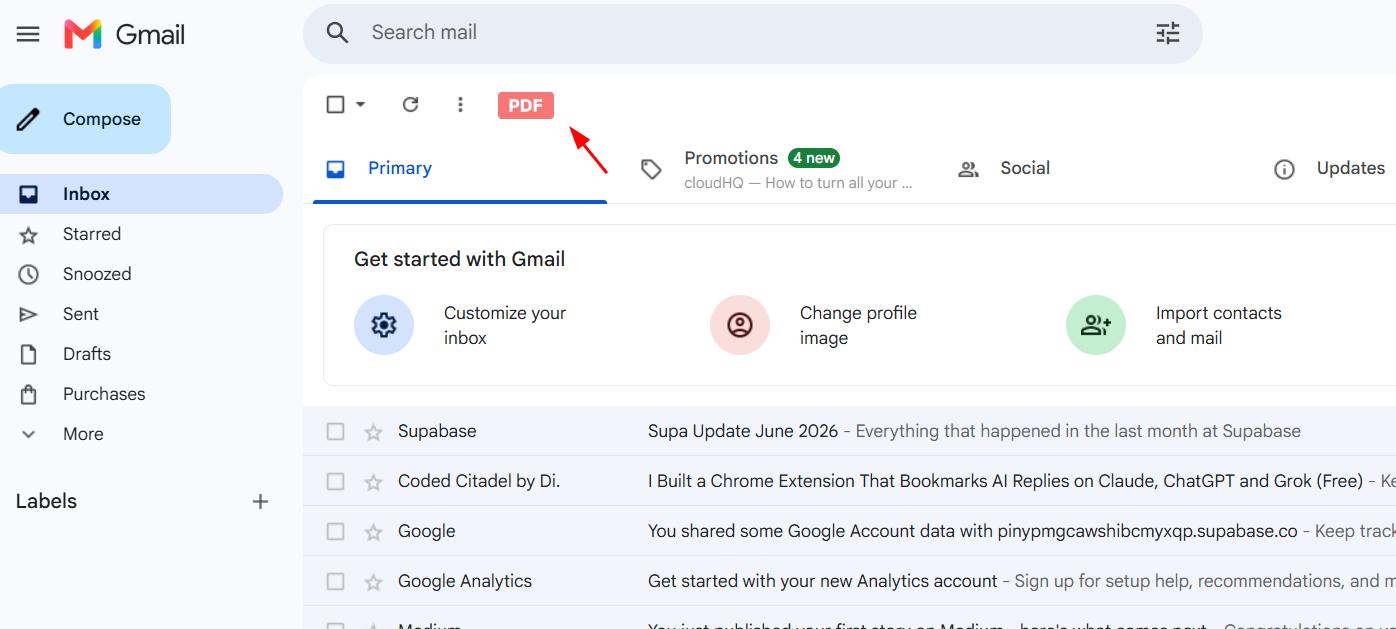
I'm also extremely picky about giving unknown extensions access to private data like email content. I prefer to build something myself when I can. Another thing that bothered me was how most of these extensions inject a permanent download button into the Gmail UI. I find that disruptive, and it's something I didn't want in whatever I was going to build.
I started this project at roughly 02:30 in the morning. Let's see how long it took.
What I wanted to build
A Gmail export tool that works without opening each email manually, doesn't require any third-party login, uses as few Chrome permissions as possible, only injects a button when you actually have emails selected (not a permanent UI element) and supports PDF, HTML, TXT and JSON exports. I wasn't 100% sure about all the formats at the start, I wanted to see how complex things got first.
Starting in the browser console, not in Cursor
If you've watched any of my previous videos, you know I always start coding in the browser before I even open the editor. Unless the project needs a background.js or a database from the start, I like to have a rough working proof of concept before I think about architecture.
My first step was opening Gmail and watching what happened in the Network tab.
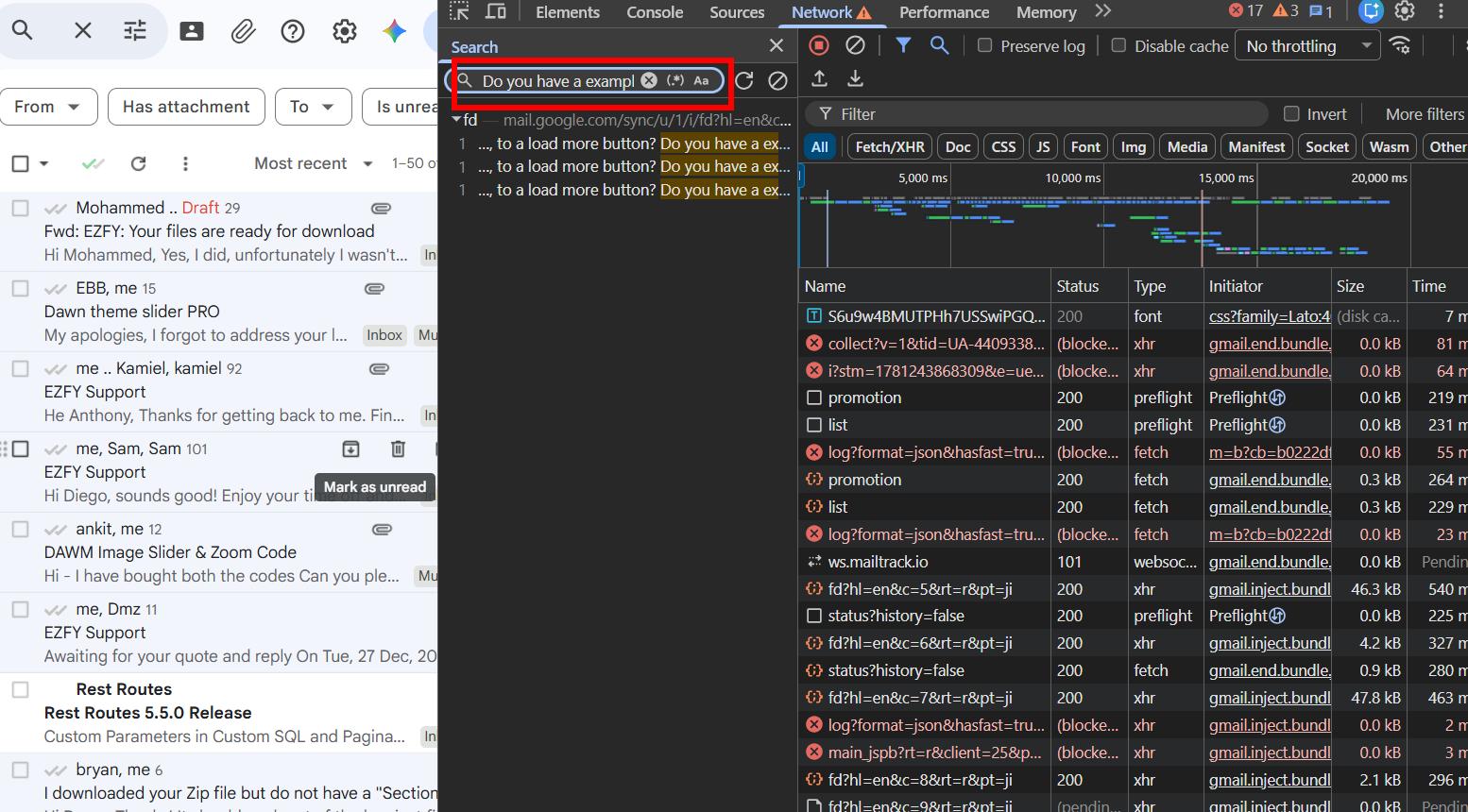
I opened an email, pasted a piece of its content into the network search bar, and found a JSON object containing the email data.
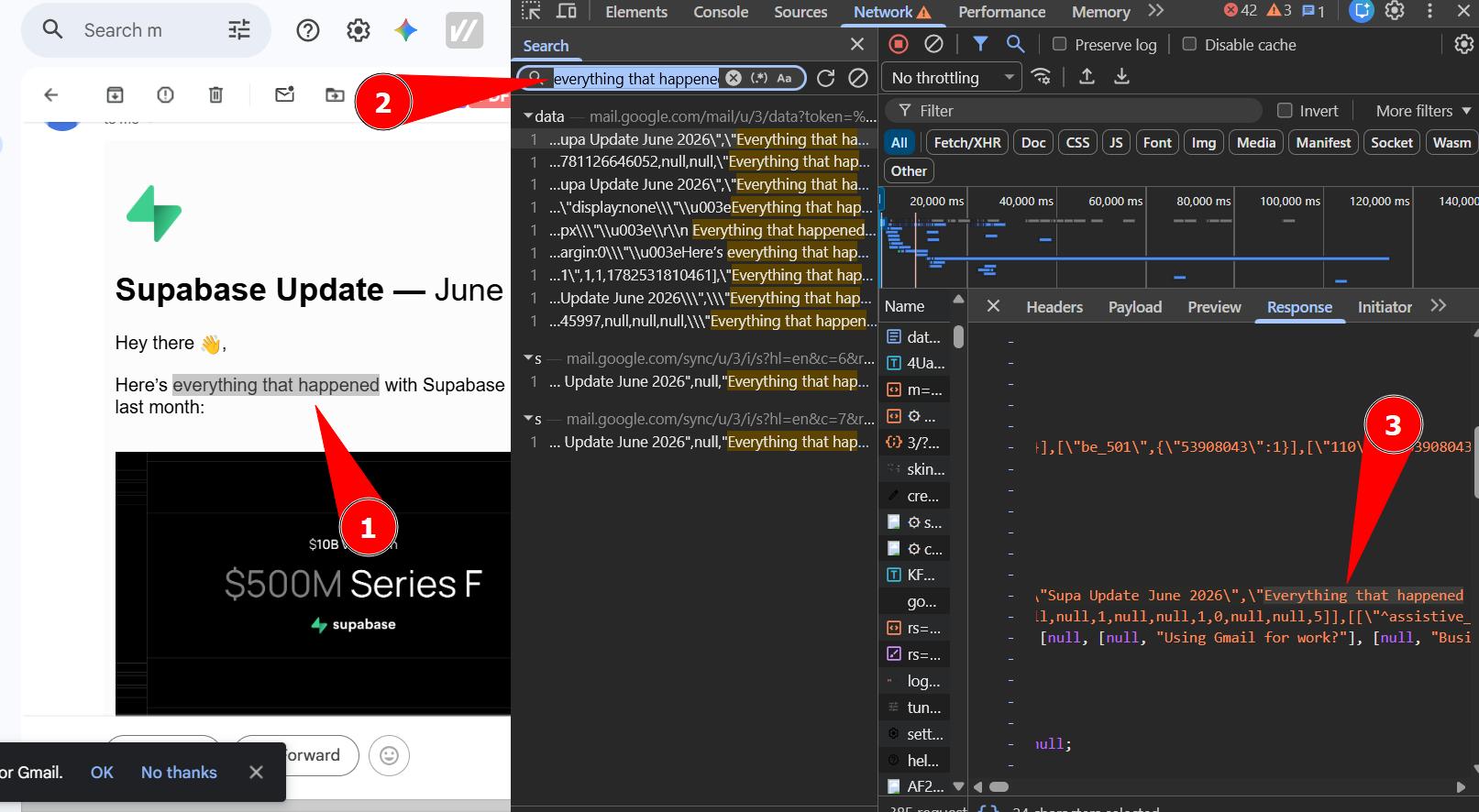
The next question was whether this data was accessible from the Gmail homepage too, or only after opening the email. And whether long emails were fully included in this object or if I'd need to actually "open" them to fetch the content.
I opened Gmail in a new tab and searched for the same string again.
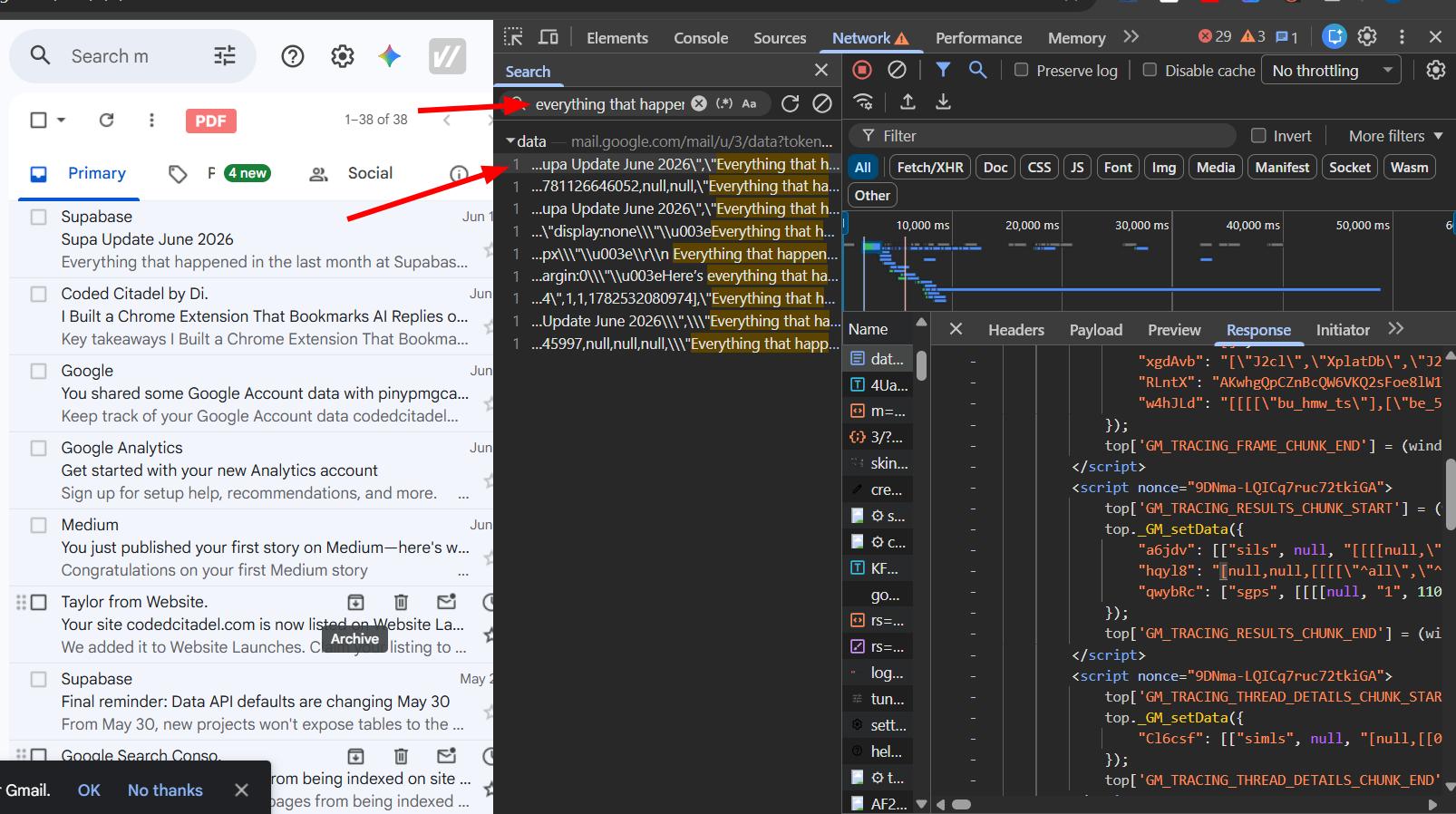
The data was there from the start. That meant I could theoretically fetch emails just by selecting their checkboxes, without ever opening them. I wasn't fully confident this would hold for very long threads, so I ran another test: I opened a conversation with 92 messages, grabbed a unique phrase from a message somewhere in the middle, and checked if the initial data object had it.
It did. Gmail preloads entire thread data in its initial page payload. I was actually surprised.
Reverse-engineering Gmail's fetch API
So the data was there, but I still needed to figure out how to fetch it on demand. Gmail was making a POST call to a specific internal URL and passing some tokens along with it.
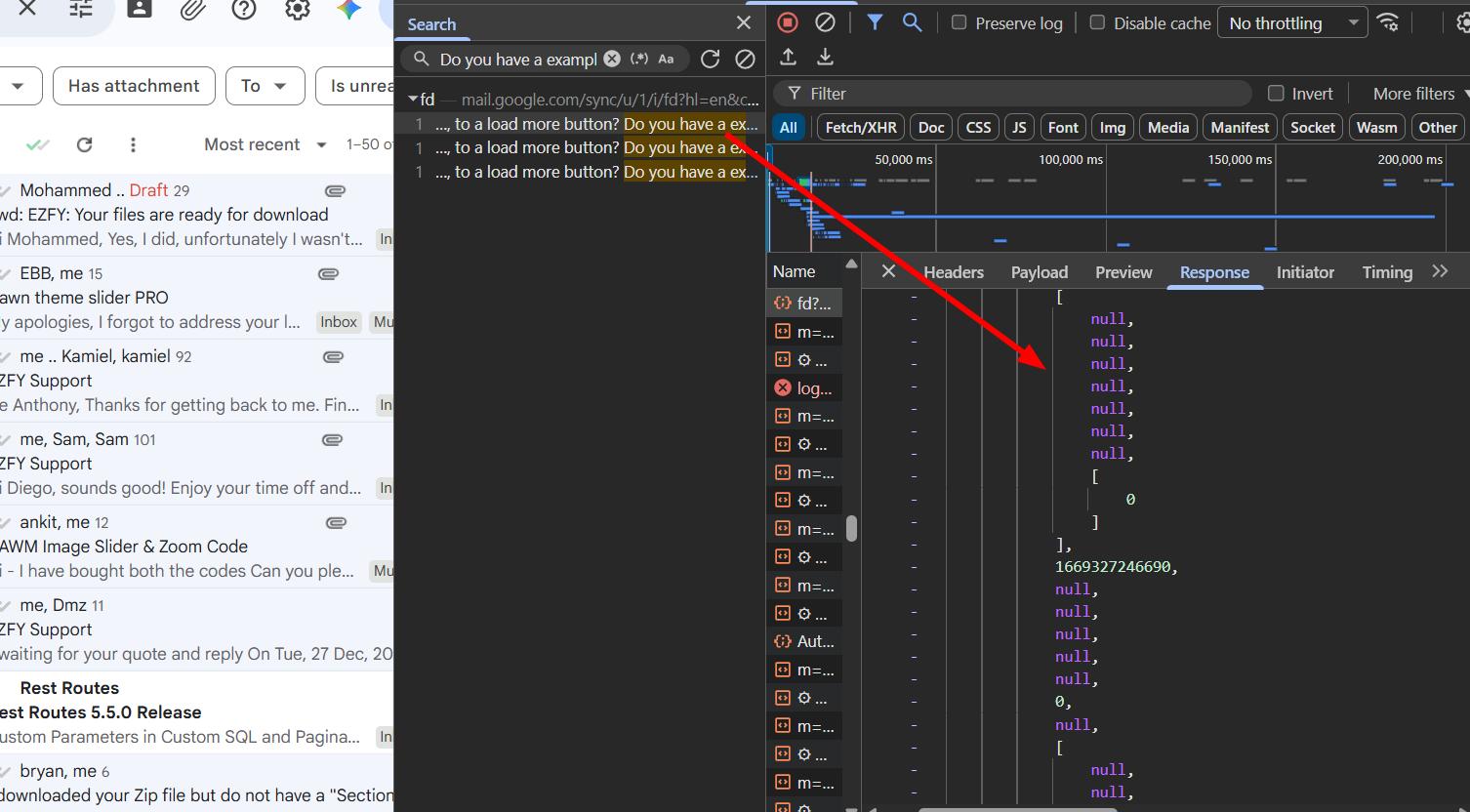
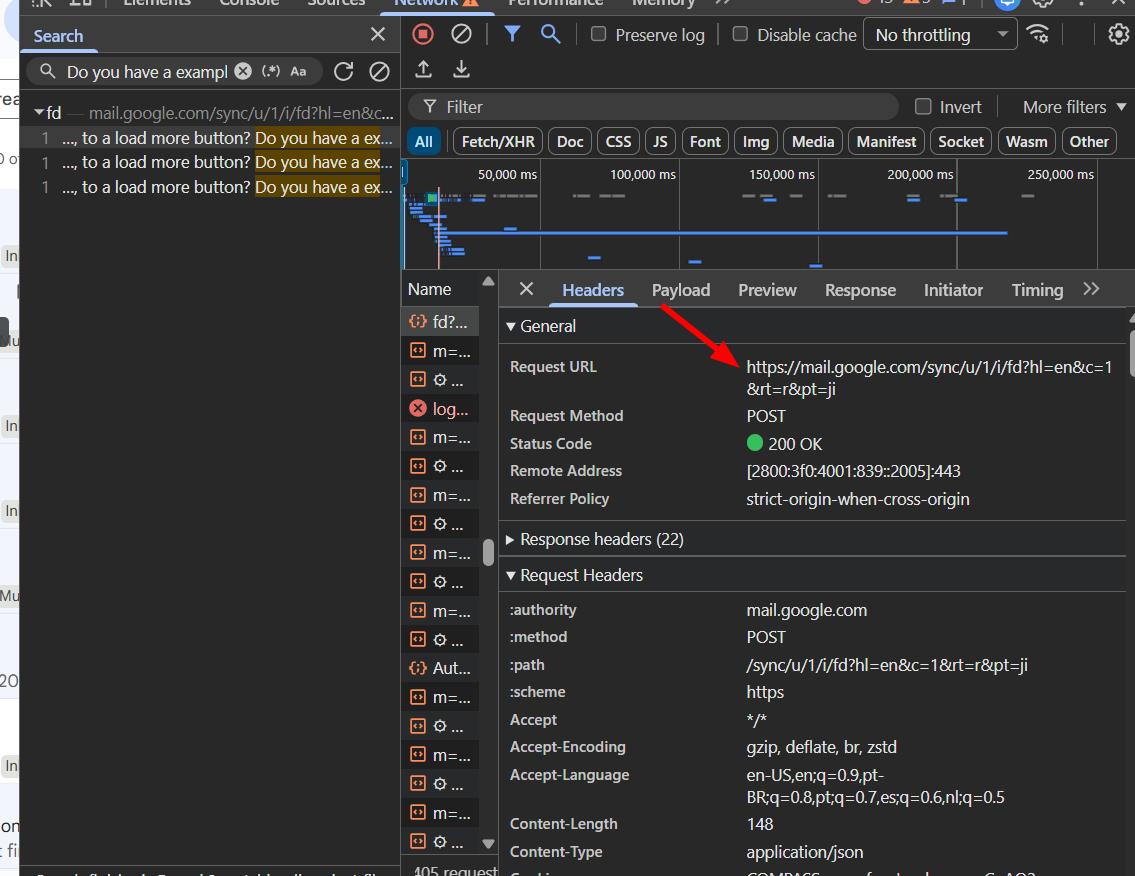
I copied all the headers, replaced the cookies and any sensitive data, and sent it to Claude asking it to write a browser script that could export selected emails based on an email ID or the currently open email. I also included some CSS selectors I'd found, and noted that unique email IDs were available in the id element.
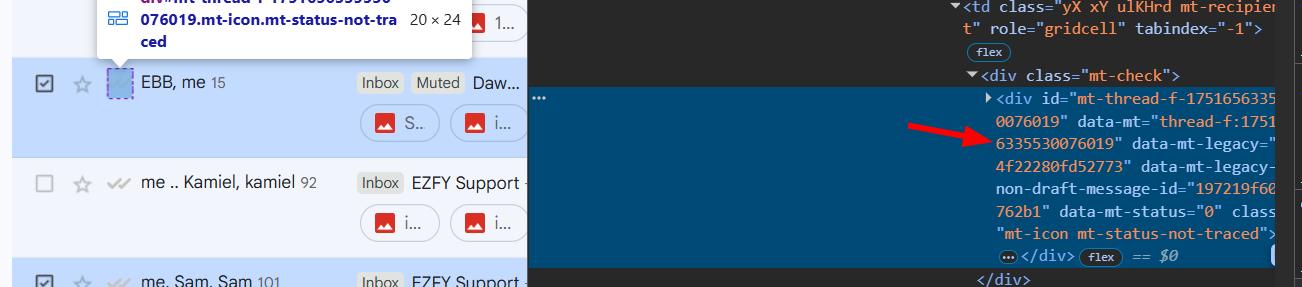
The first version just opened each email in a new tab and tried to fetch from there, which wasn't what I wanted at all. So I simplified the ask: just console.log the HTML of selected emails and export it. That worked. Attachments weren't being fetched yet, but the core was there.
This is where AI really shines. Once you understand the network layer and know which endpoints to target, you can just chat with Claude and let it handle the technical implementation. You do need to get yourself to that point first though.
Attachments, base64 and a lot of debugging
Getting attachments right took way longer than I expected.
The attachment URLs in Gmail are authenticated, meaning they only work for the currently logged-in user. Fetching them cross-origin from a script triggers CORS errors. I ran a quick test: grabbed an attachment's src from an open email and tried to open it directly in a new tab.
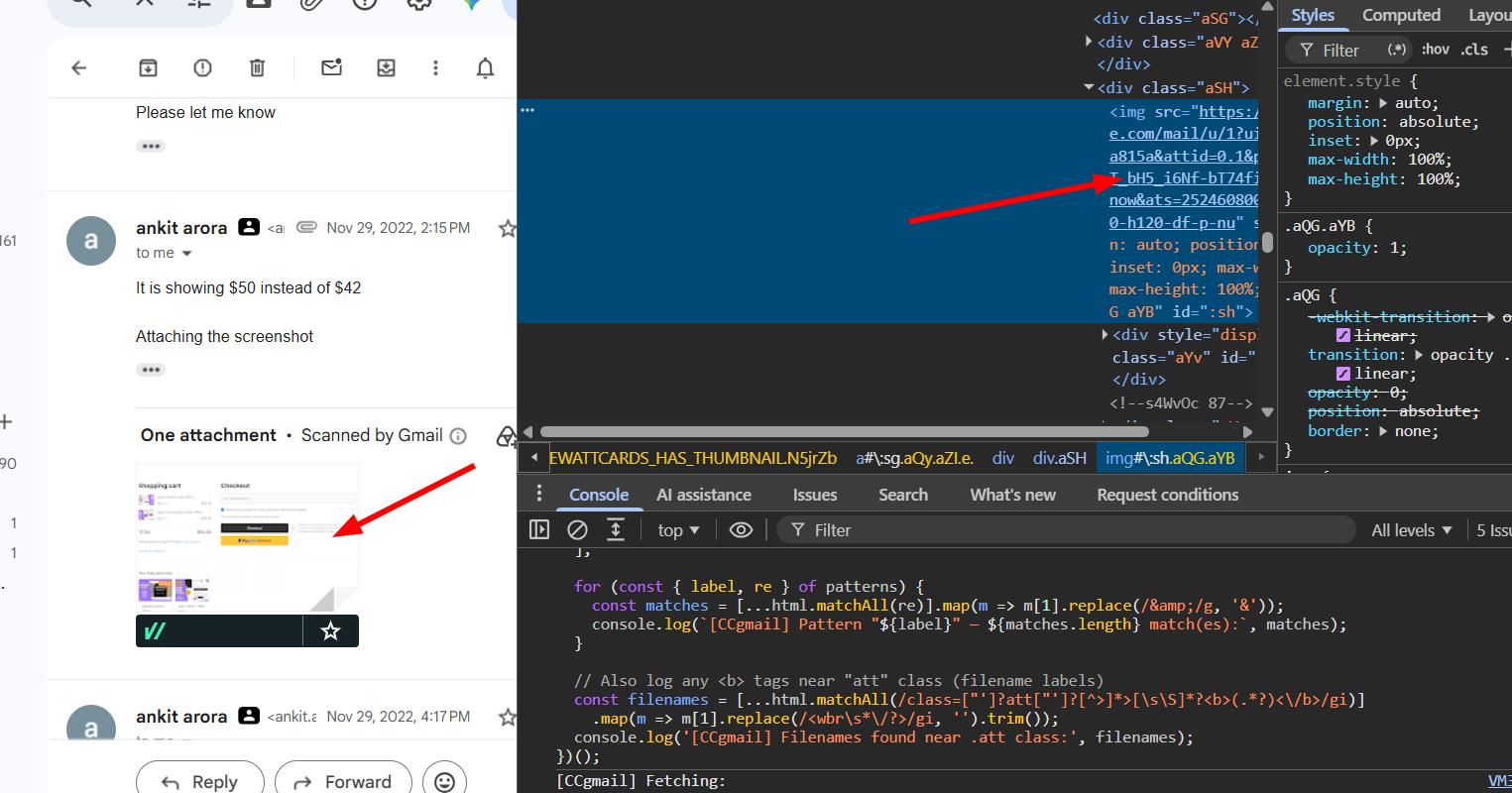
It worked, and the size was fixable (the URL had a quality-capping query string that I could strip). So the plan became: find all images in the HTML, fetch their src, convert them to base64, and inline them into the exported file.
The approach Claude suggested was to replace filename references in the HTML with base64-encoded <img> tags. Almost worked on the first try, but the <style> tag wasn't being injected correctly into the HTML head, there was a class being added twice, and the latest CSS was overwriting the earlier one. I fixed those one by one.
There was also a bug where attachment images were being appended at the bottom of the email instead of staying inline. And Claude was using regex to parse the HTML, which is the wrong tool for this. My approach instead:
get the data from this console log:

[CCgmail] Attachments (3): (3) [{…}, {…}, {…}]

for each of them, we need to:

find the exact 'filename' in the html
convert the image to base64
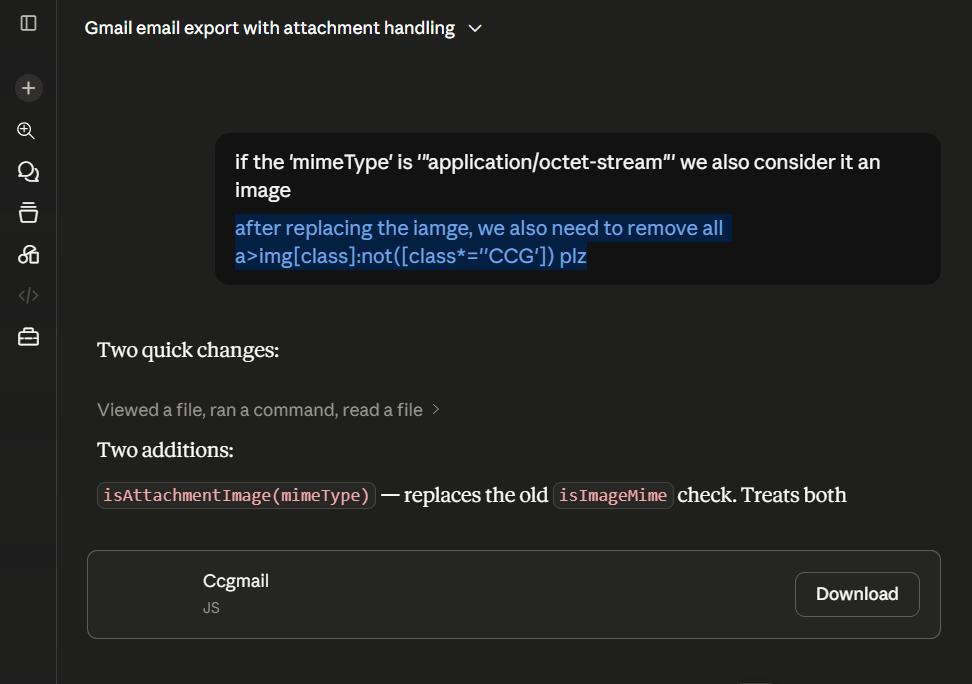
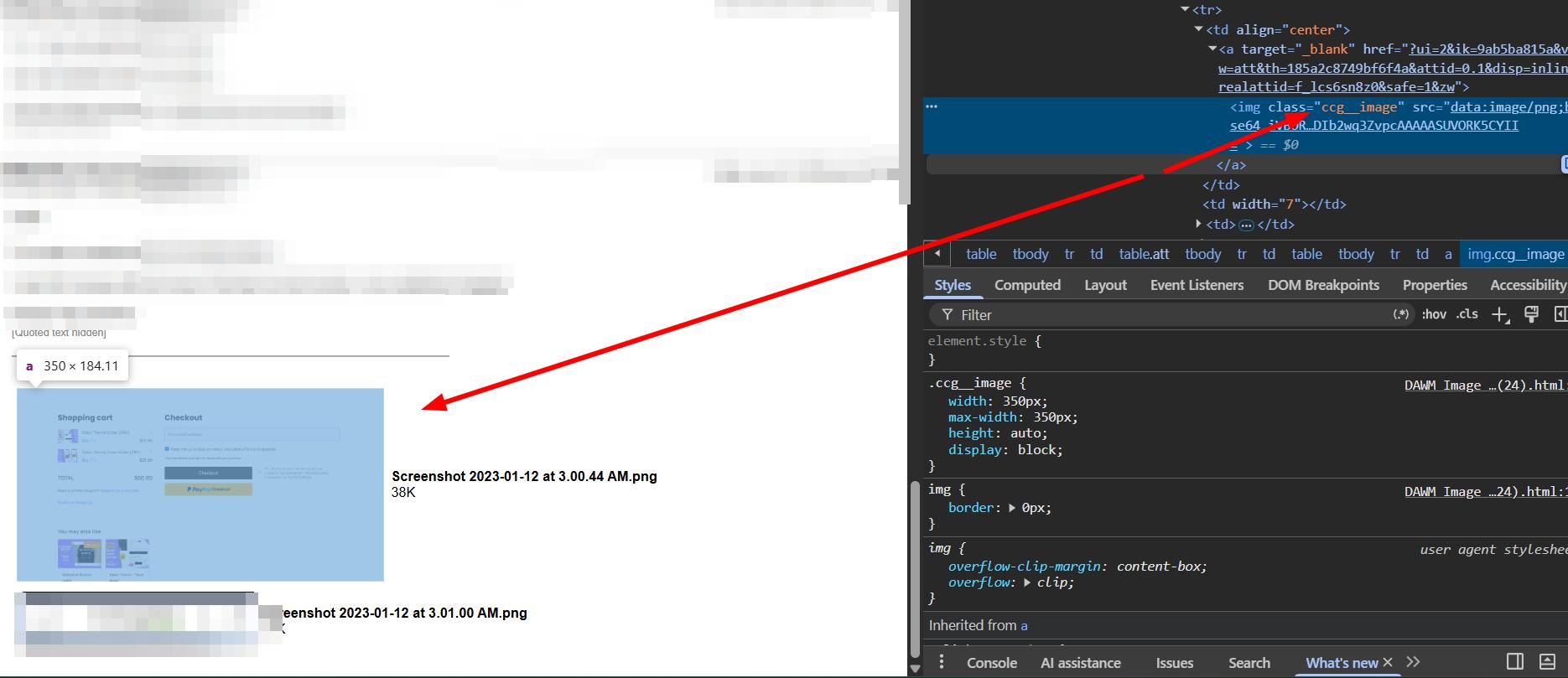
replace the file name with <img class="CCG-image" src="base64" />
download .html
Almost perfect after that. One last issue: the previous image thumbnail was still showing after the replacement.
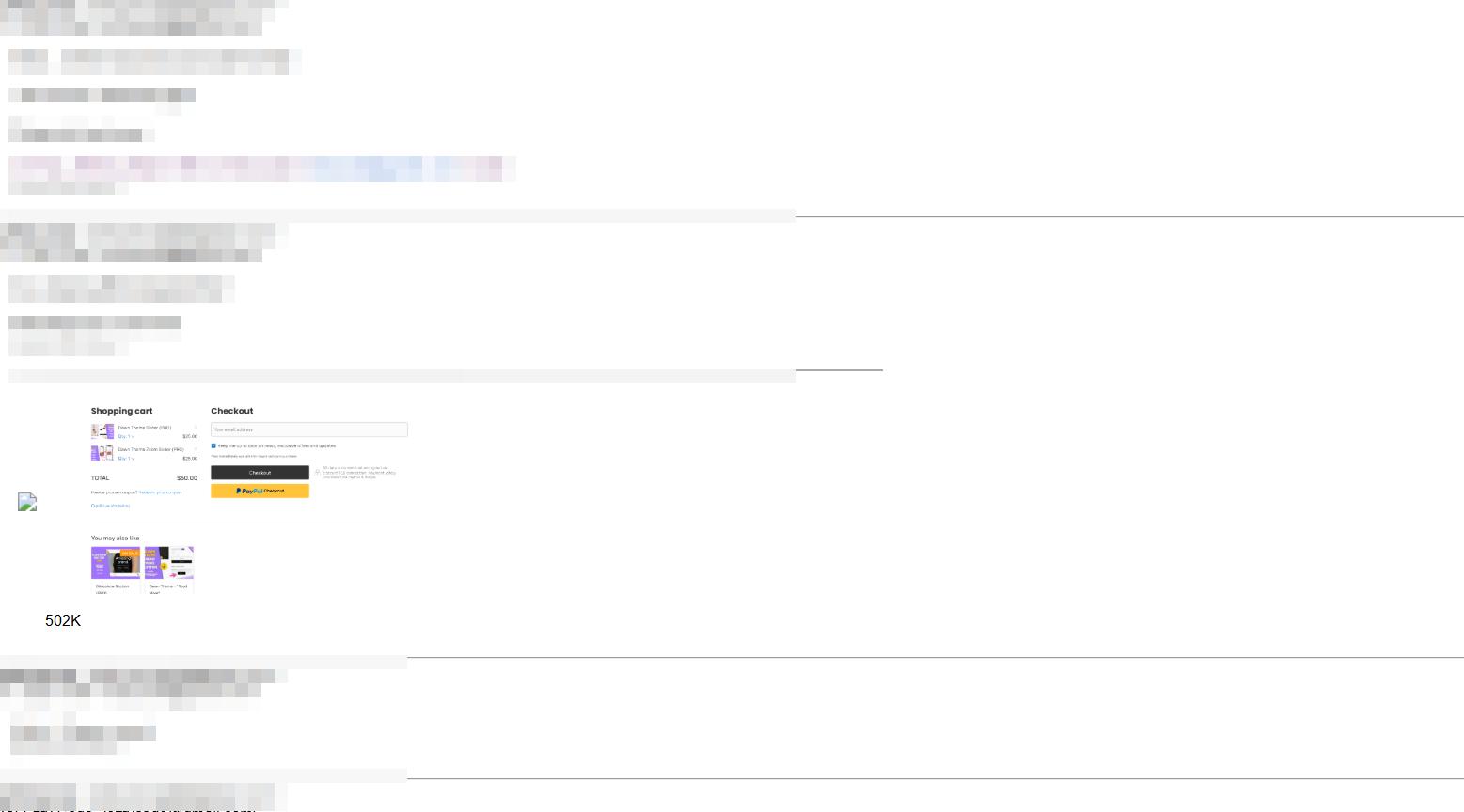
Fixed it by also removing all a>img[class]:not([class*='CCG']) after the replacement.
Editing live websites is always tricky. Things break without warning, debugging takes longer than you think, and regex is almost never the right answer for HTML parsing. Still my favourite type of work though, lol.
One more thing I caught: Gmail won't allow DOMParser in scripts running on the page because of CORS restrictions. That meant background.js was going to be necessary for parsing HTML properly.
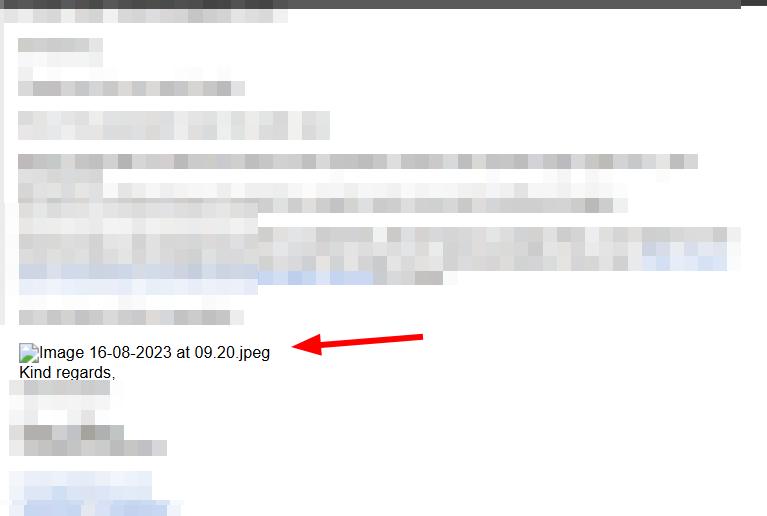
The quality of the base64 images was also an issue at first. I had to strip the size-capping query strings from the URLs before converting them, which made a visible difference.
Building the Chrome extension
I'm always very strict about permissions. Too many permissions slow down the Chrome Web Store review process and increase the chance of getting denied. If you're not using a permission, don't ask for it.
I brainstormed the architecture with Claude, got a prompt written for Cursor, and kicked off the first build.
My initial instinct was to use the popup to trigger exports, but I ended up going with a subtler approach: a button injected into Gmail's existing toolbar, only visible when you have emails selected.

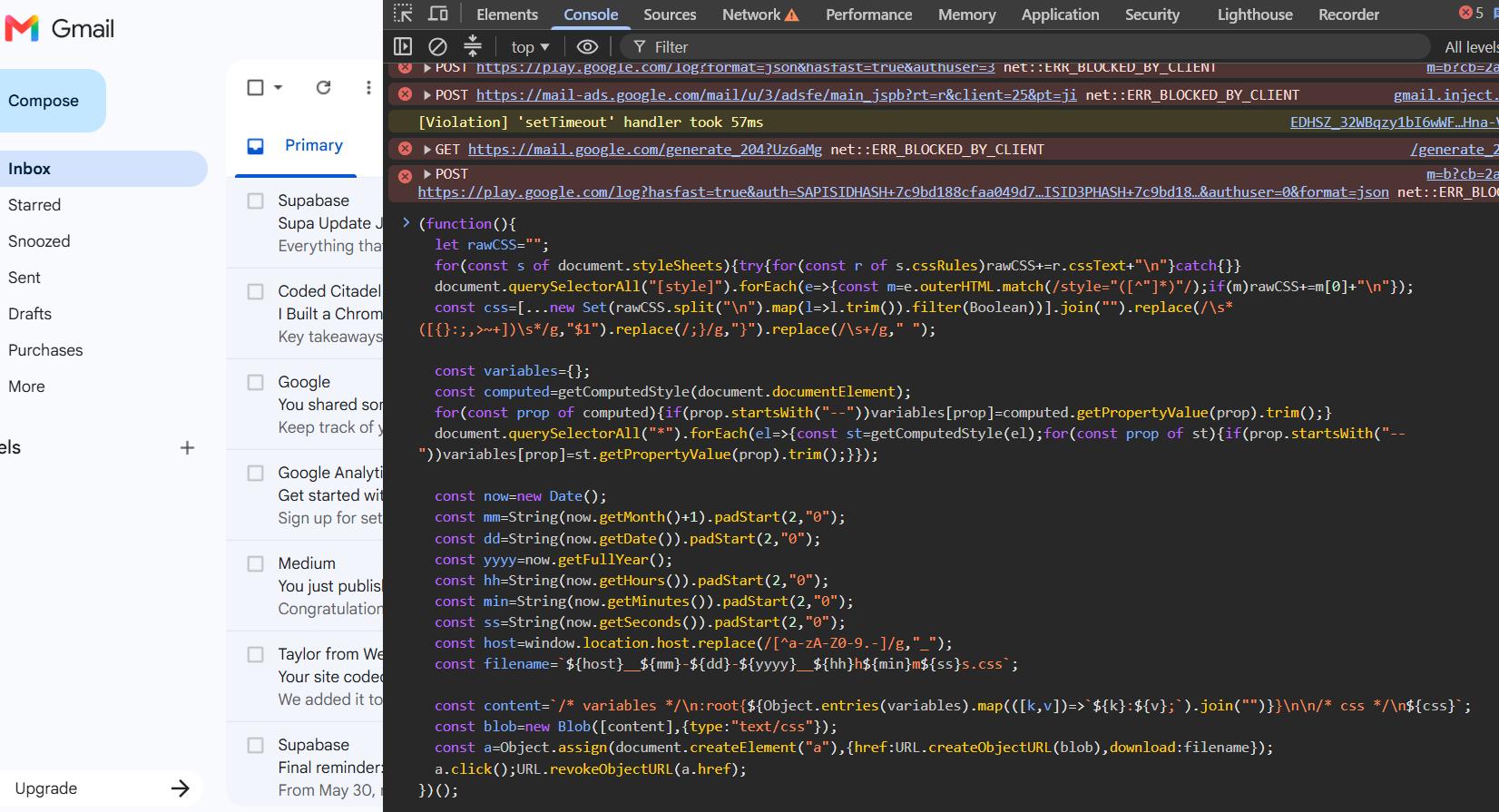
To match Gmail's visual style as closely as possible, I used a function I'd built in my AI Bookmark Manager extension that exports all CSS from the current page. I then fed that CSS to ChatGPT to design the extension UI.
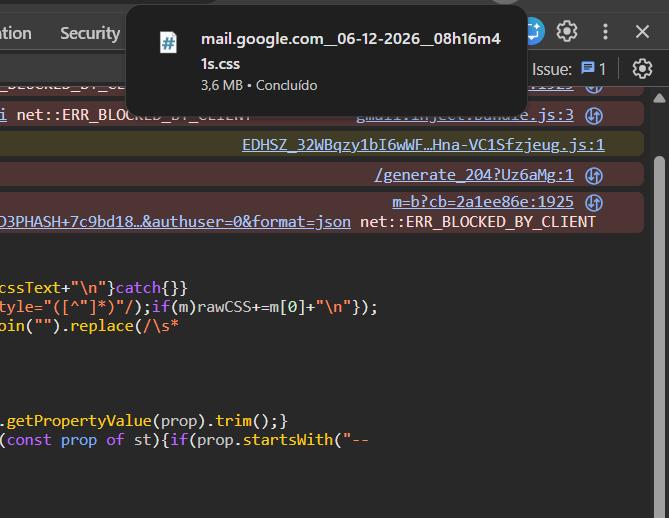
Claude suggested adding a history tab, which I hadn't thought of but wasn't complex to add. Why not.
The first build had some bugs and the popup design wasn't great, but that was fine. Functionality first, always.
The PDF export nightmare
This was by far the hardest part of the project, which is ironic because it's the whole point of the extension.
I knew I needed to convert the email HTML to PDF using html2pdf. I sent the HTML string from content.js to background.js to handle the conversion. The output was completely wrong.
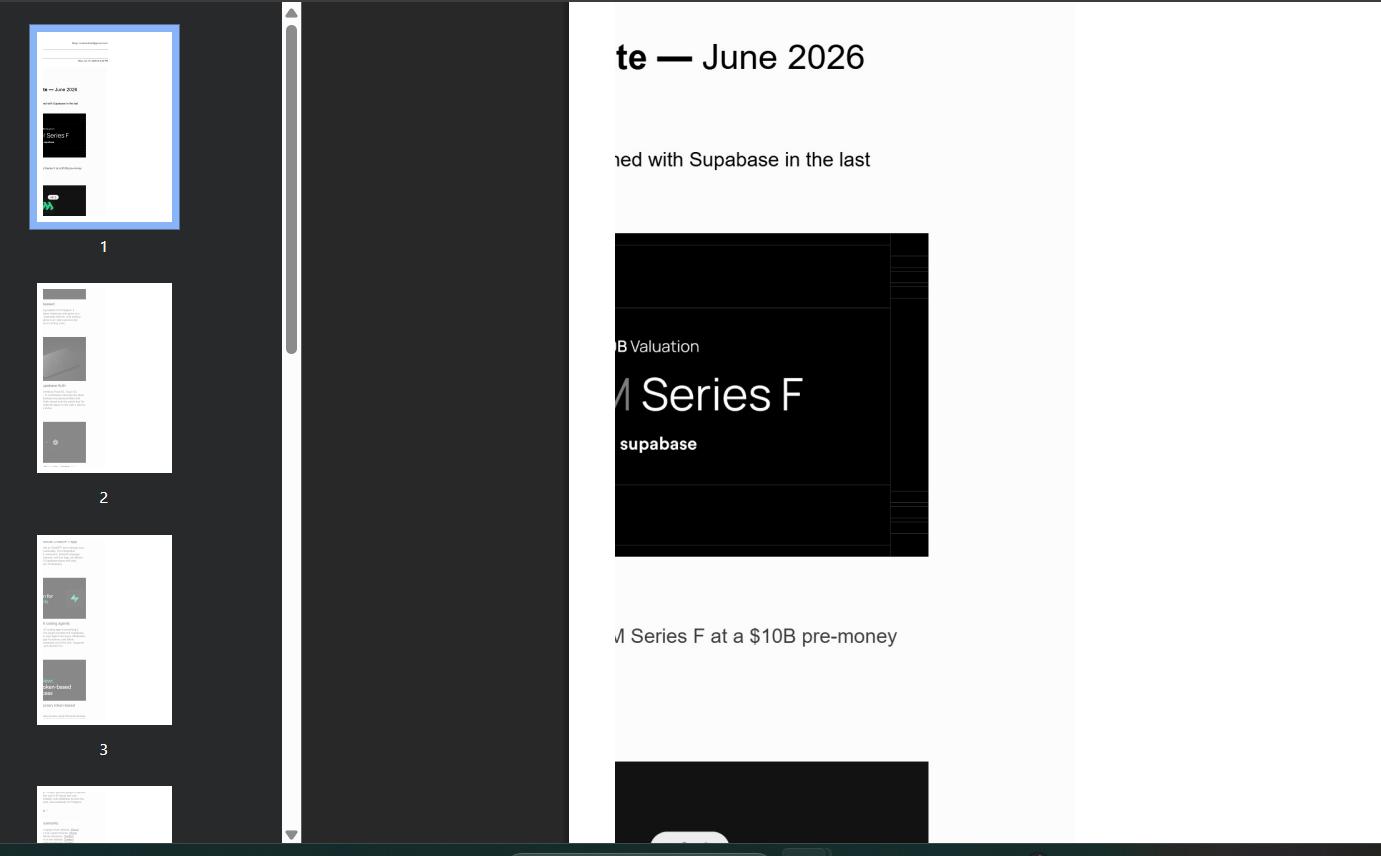
I ran a simple "hello world" test to isolate the issue. It was cutting things off.
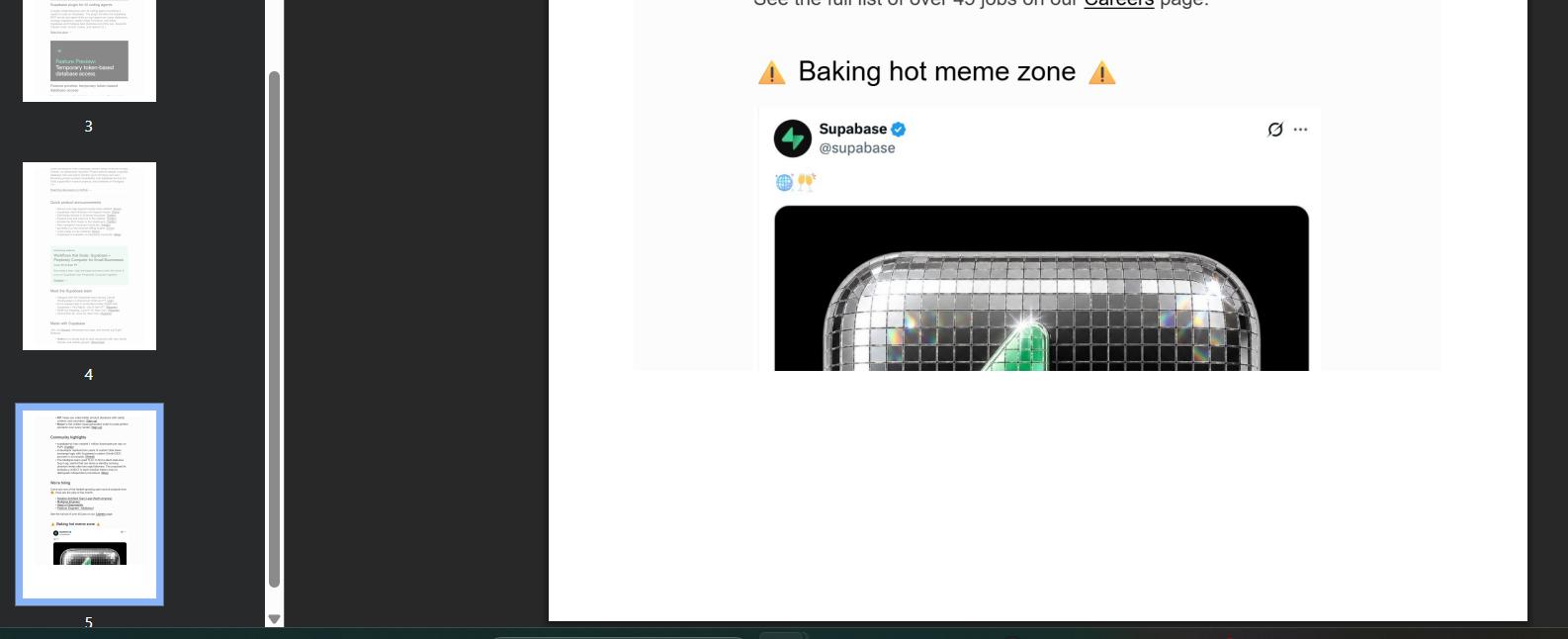
After some debugging I got to a "good enough" state, but then I found another bug: all selected emails were being exported into one single HTML file instead of separate ones. Fixed that.
HTML exports worked fine with external images, but PDF exports needed images converted to base64 first. I added that. Things were looking better.
Then came the attachments issue. The zip files were downloading but the attachments inside were corrupted, and some had no file extension at all.
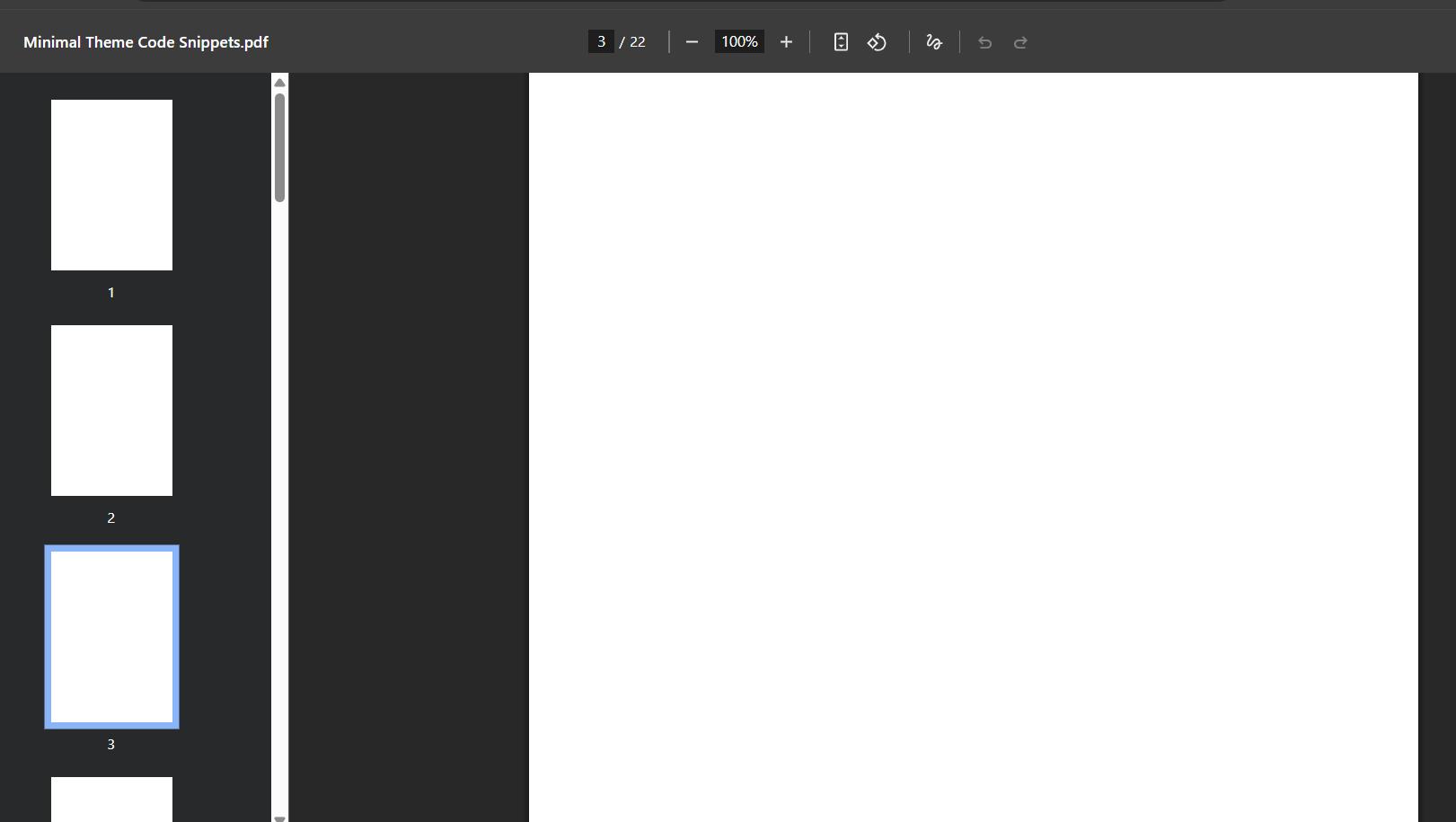

I moved the PDF conversion to background.js so I could use querySelectorAll instead of regex. Then I remembered DOMParser doesn't work in background.js either. I was coding while tired, lol.
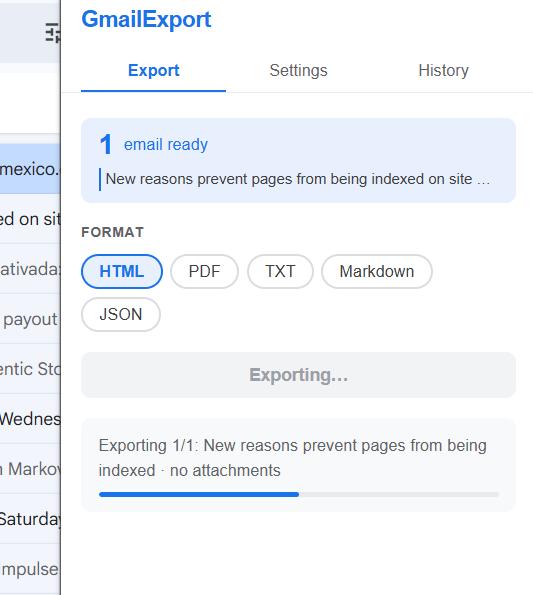
Some emails were producing empty PDFs. 8mb of HTML rendering into a 10kb PDF.
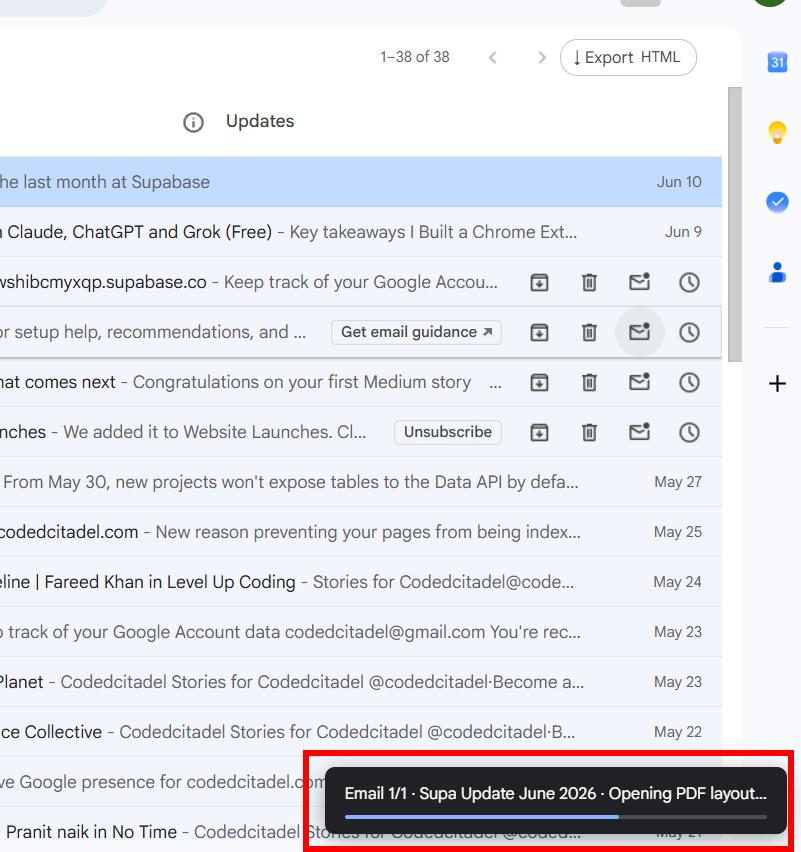
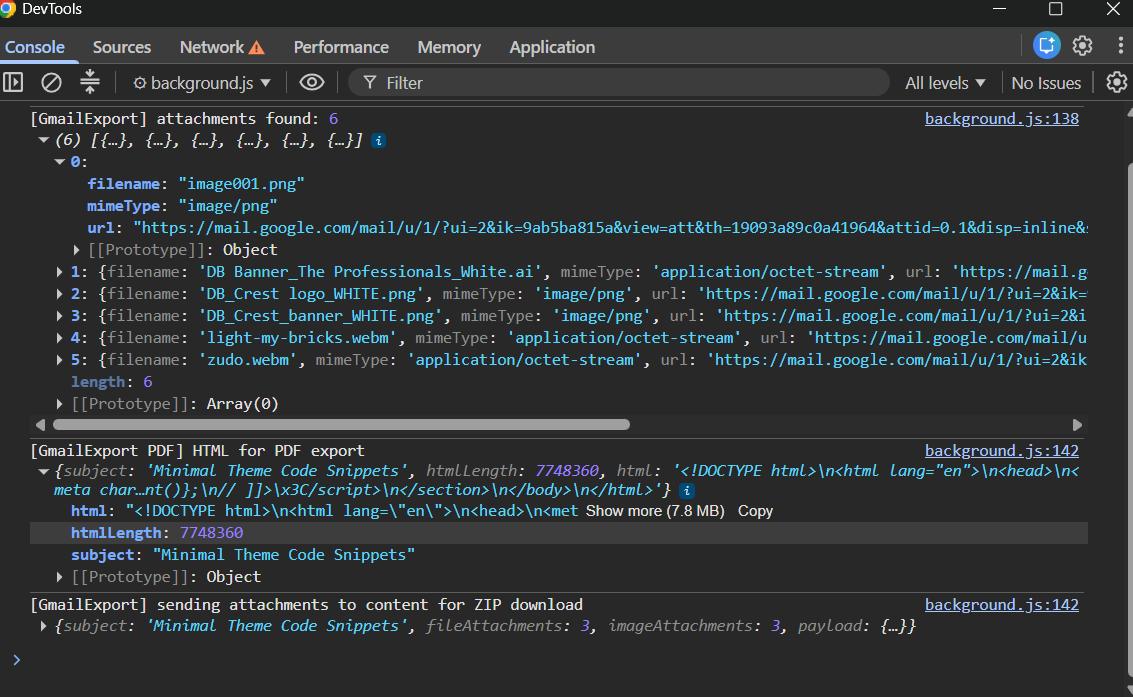
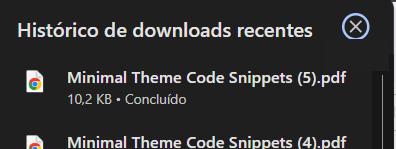
The attachments still weren't downloading correctly either. The problem was a back-and-forth between content.js and background.js that wasn't sustainable.
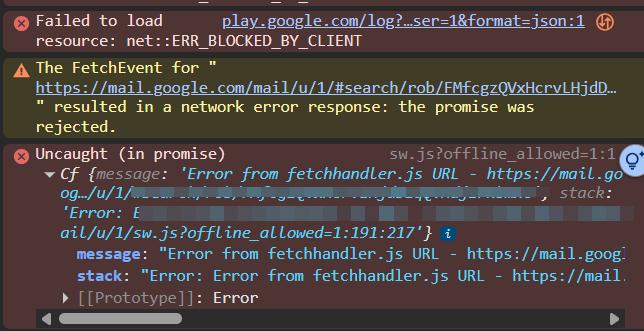
This is one of those moments where not understanding how Chrome extensions work under the hood would either get you completely stuck or make you spend a lot of money asking AI to guess. Claude kept suggesting doing everything in content.js, but that's not possible because we need background.js for DOM parsing. And background.js can't download authenticated files because of CORS.
The solution: fetch the HTML in content.js, send it to background.js to find attachments using querySelectorAll, send those back to content.js as a JSON object, and download everything from content.js. Then zip it all.
I tested the download and zip logic manually in the browser first.
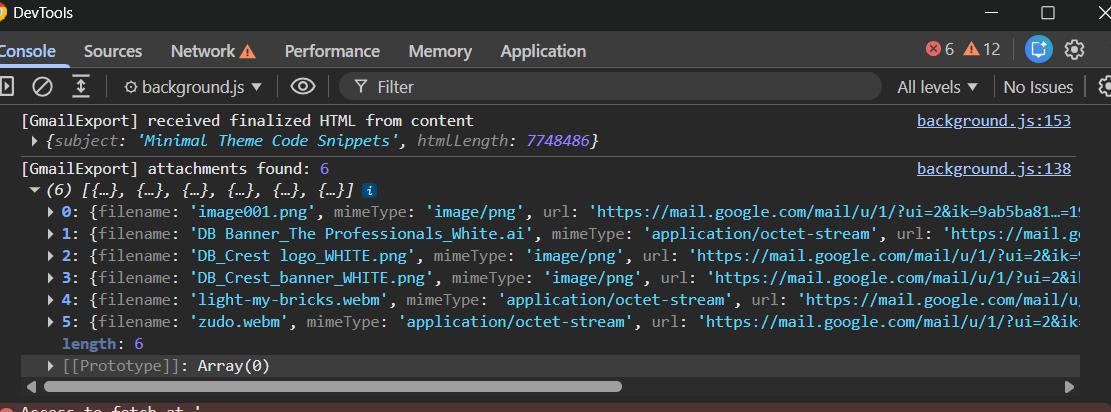
Worked perfectly. So it was just a matter of wiring it correctly in the extension. Got there.
The PDF being empty on large emails was still an open issue though. Claude's diagnosis was that html2pdf was running on a frame that hadn't fully loaded yet, which makes sense for emails with a lot of content. I also found that some emails were triggering an overflow-x scroll that was cutting off the PDF content.
I sent the HTML (with sensitive data redacted) to Claude and got a CSS fix for the overflow issue. That helped. But the empty PDF problem on large emails was still there.
The actual fix: do the PDF conversion in an offscreen HTML page. Create a .html file bundled with the extension, inject the email HTML into it, let it fully render, then convert. This is Chrome's offscreen permission, which adds almost nothing to the permissions footprint.
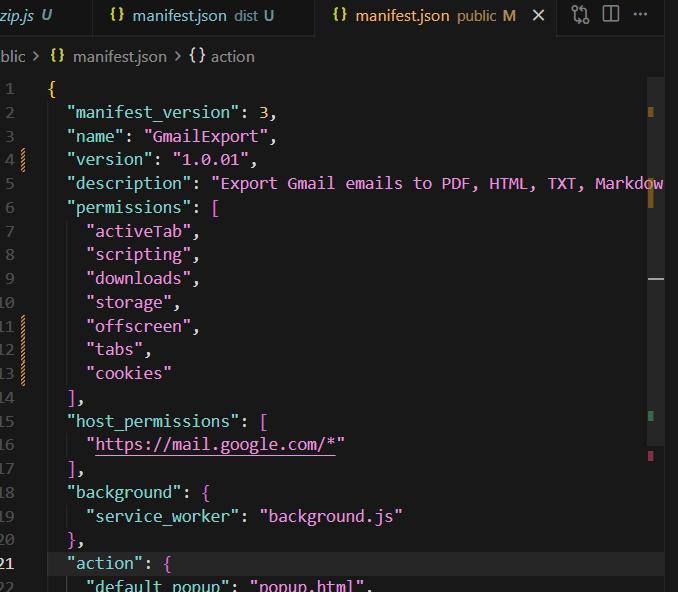
That fixed it. The PDF was finally being exported correctly, including all images.

If you're building something similar: html2pdf fails silently on large emails. An offscreen document lets you render the full HTML in a real DOM before conversion, and that's the difference between a 10kb empty PDF and a proper export.
Injecting the button into Gmail's UI
Now that the export logic was solid, I needed to wire it to a button inside Gmail.
First I built a function to monitor checkboxes:
td[data-tooltip] > [aria-checked]
Whenever at least one checkbox is checked, the button appears. When none are checked, it hides. I spent some time finding a CSS selector that wouldn't break every time Gmail updates its classes. Gmail randomises class names, so I had to find something structural:
div[role="navigation"] + * div:not([class]) > div[id] > * > * > *:first-of-type > *:first-of-type
One thing I discovered: Gmail already has a data-tooltip attribute on its toolbar elements that handles tooltips automatically. I didn't need to build my own tooltip system. Worth exploring the existing code before building things that already exist.
I also replicated Gmail's bubble hover animation. It's triggered by JavaScript that adds a class on hover, so I had to attach a debugger to a setTimeout to give myself time to hover over the element and inspect it while paused. Took a few minutes but got there.
JSON, TXT, history and keeping permissions tight
The JSON export followed the same flow. I asked Claude to suggest the best structure for it and sent the prompt to Cursor. One bug: images were being converted to base64 by default, which should be optional. Fixed via settings.
For TXT export I added an option to strip hyperlinks, since plain text with a wall of URLs is pretty unreadable.
Claude also suggested a history tab, so I added pagination to that.
At this point I reviewed the manifest and tightened everything up. Final permissions:
"permissions": ["downloads", "storage", "offscreen"],
"host_permissions": ["https://mail.google.com/*"]
PDF export still worked fine with just those four.
The logo (and GPT being stubborn)
I wanted a Gmail-inspired palette but something clearly distinct from Gmail's actual icon.
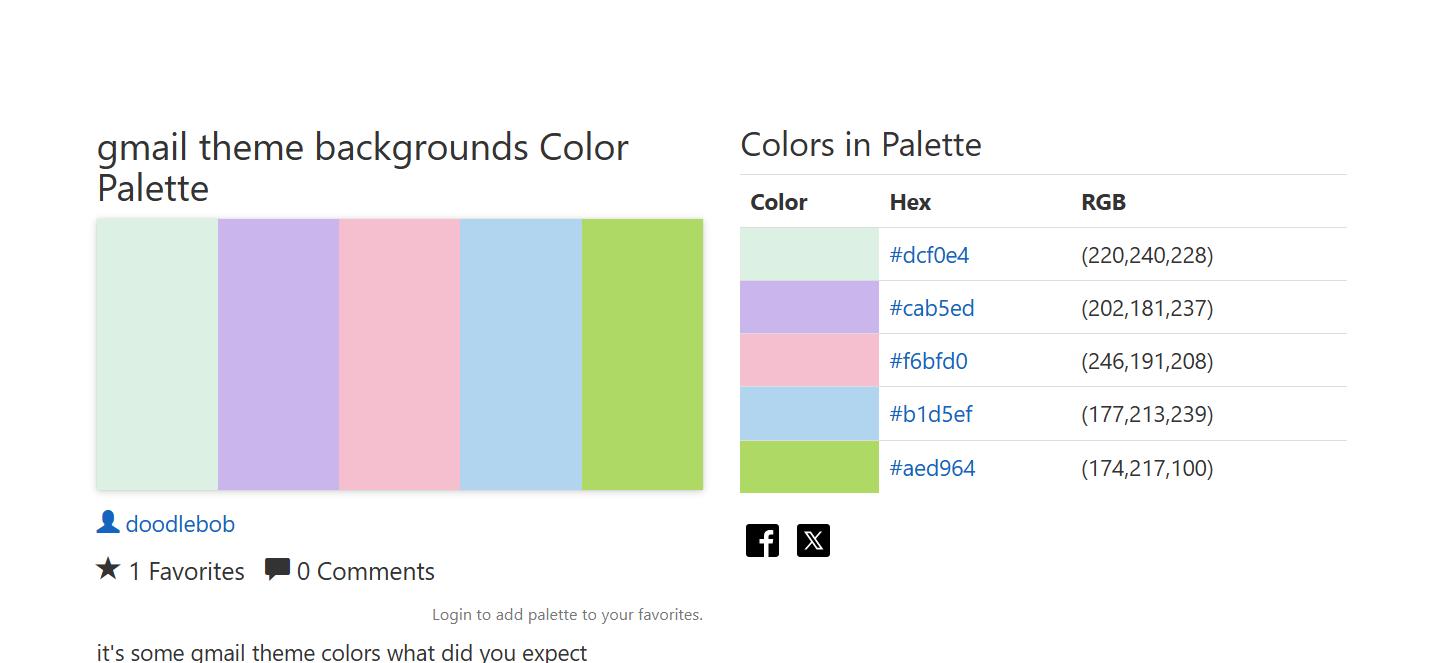
First attempt was too close to Gmail's real icon.

Second attempt, different colors, still not great.

I asked GPT to just take the icons I sent and be creative with the colors. "Let your inner da Vinci shine, GPT."

Better. Just needed to be a bit bigger.

That one is ugly.
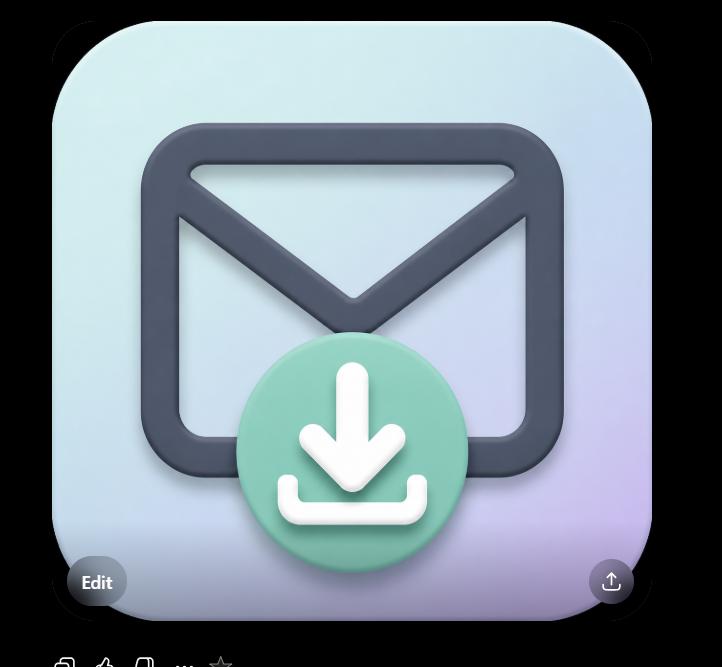
GPT completely ignored the sizing request, as it sometimes does. One last attempt, and if it didn't work I was keeping the smaller version.
No luck. AGI is here and it's stubborn, lol. I took what I had into Photopea for some basic editing.
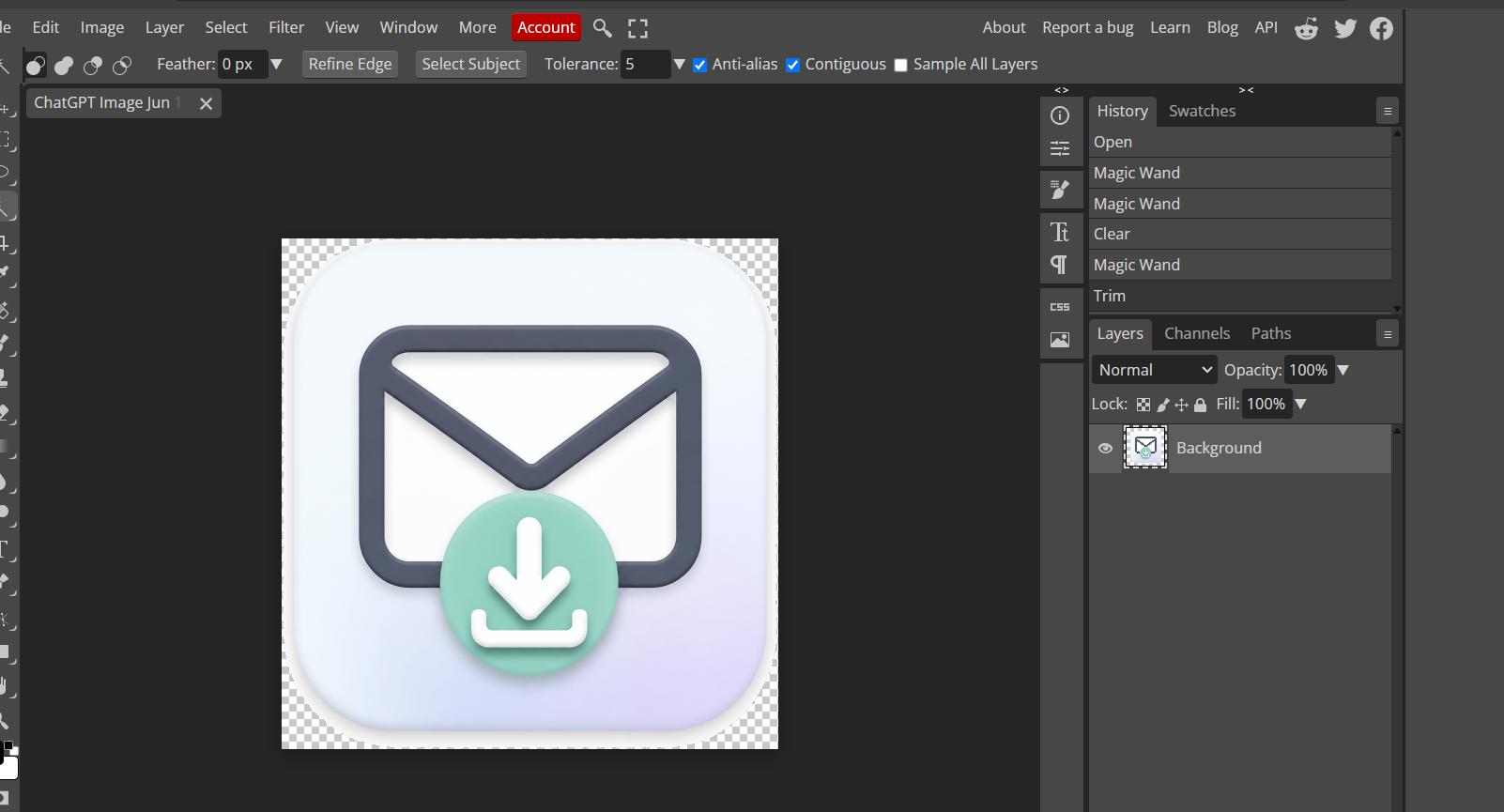
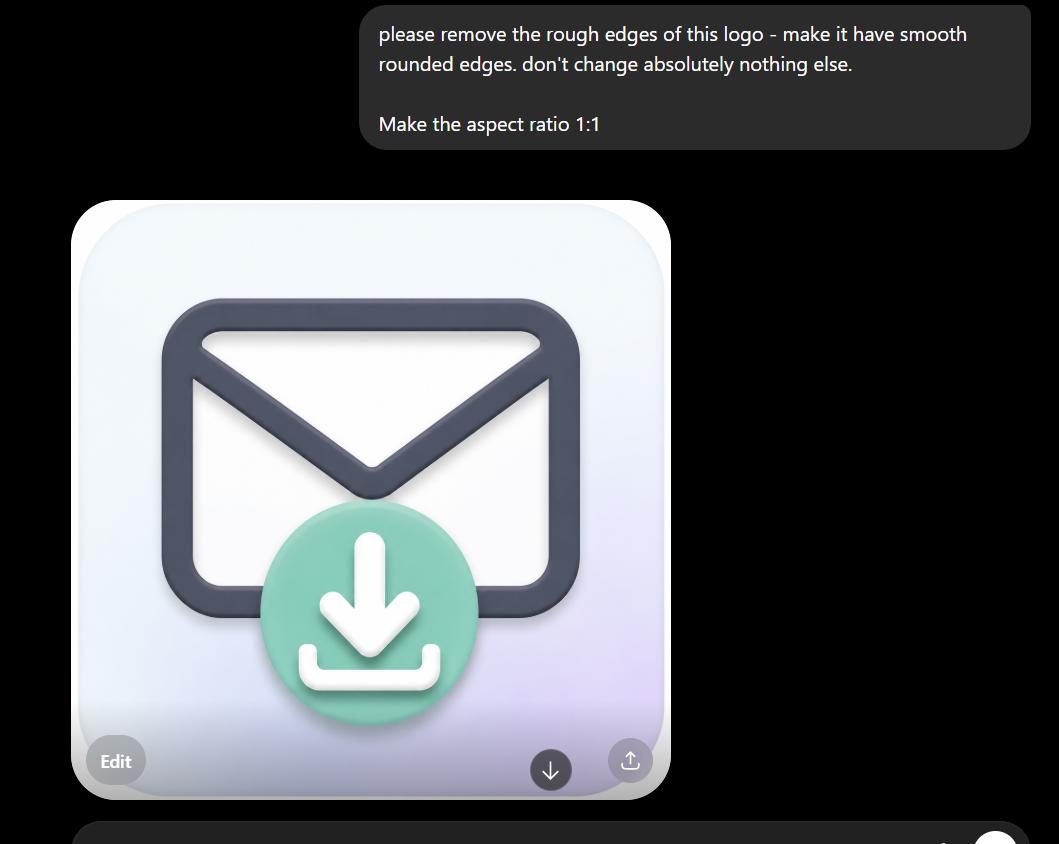
The edges were a bit rough so I sent it back to GPT one last time and it came out nicely.
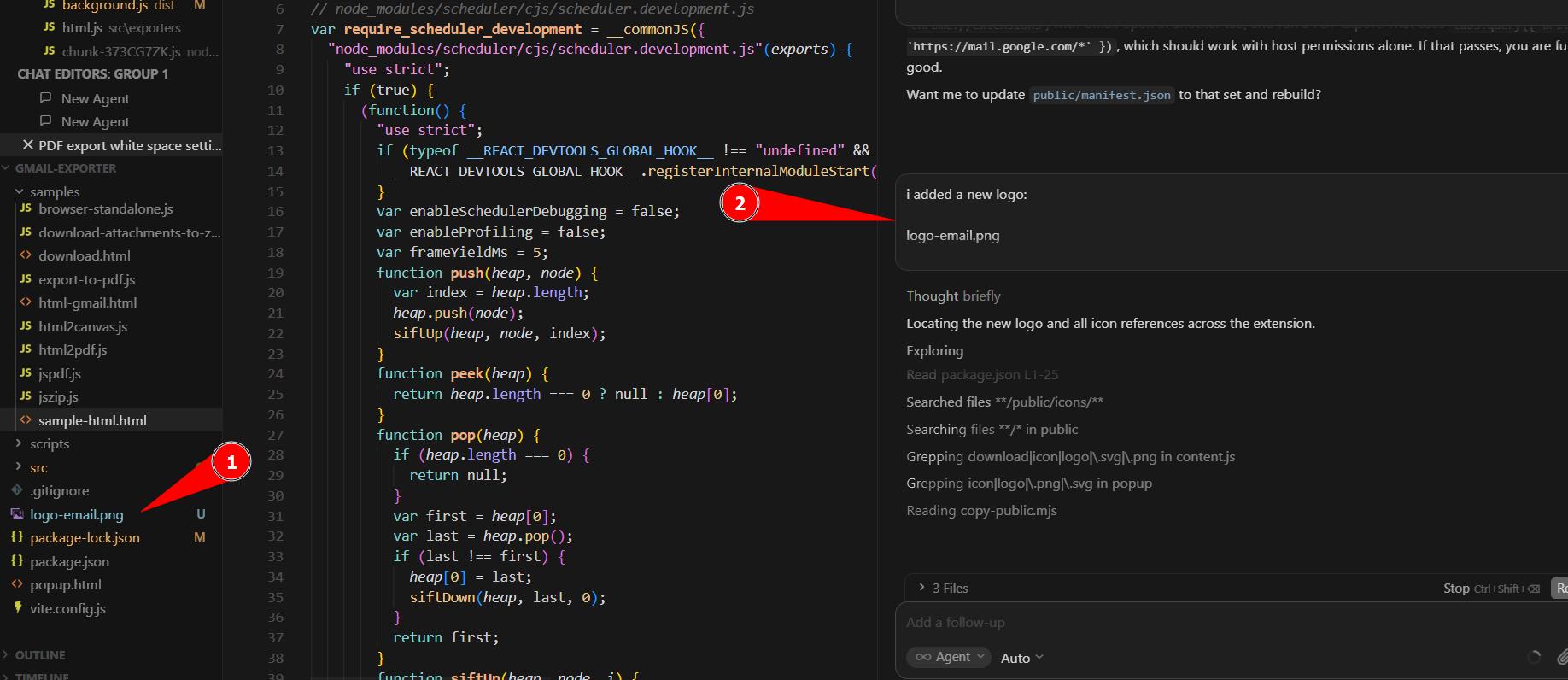
I asked Cursor to replace the icon throughout the project.
Shipping the MVP
I kept the popup design simple intentionally. My rule of thumb: if the user is going to spend more than 50% of their time looking at a UI, then put real effort into it. For an export tool, the user clicks a button and waits. The UI doesn't need to be beautiful, it needs to be clear.
I'll polish things after it goes live. Functional ugly MVP first.
One thing I noticed before packaging: Cursor had crept extra permissions back into the manifest. This is why I always review manifest.json changes manually before zipping. I caught it and removed them.
For the name I went with "Gmail to PDF: Save Emails as PDF, HTML, TXT". Descriptive, good for SEO and tells you exactly what it does.
Uploaded.
By the numbers
120~ prompts total (90~ with Cursor, the rest spread across Claude and GPT) and 15~ hours across two days.
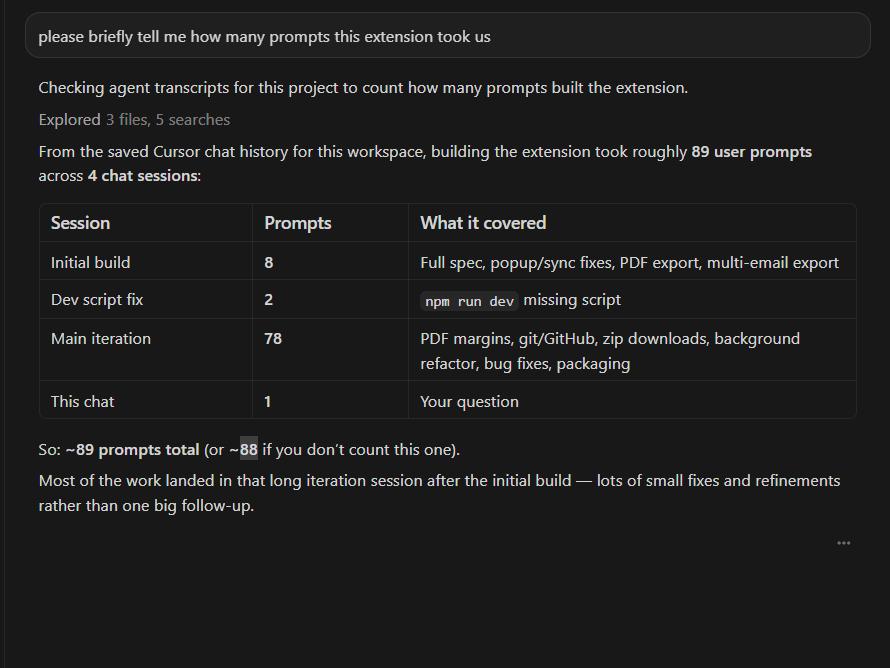
It was a fun project. There are still a few things to fix (the download button doesn't appear when you're inside an individual email, for example), but I'm happy with where it landed. I didn't pad it with useless things, and it does exactly what it promises.
One more brick to the Citadel. Let's keep moving.
Have you run into the same problem with Gmail PDF extensions breaking? Or built something similar? I'd love to hear what approach you took.
FAQ: Gmail to PDF export
What is the best way to save Gmail emails as PDF?
The most reliable approach for a self-built tool is: fetch email HTML from Gmail's internal API in content.js (where your session cookies live), inline images as base64, then convert HTML to PDF in an offscreen document so large emails render fully before html2pdf runs. Extensions that skip the offscreen step often produce empty or truncated PDFs on threads over ~8MB.
Why do Gmail PDF Chrome extensions stop working?
Gmail changes its DOM, class names and internal API payloads regularly. Extensions that scrape the UI with brittle selectors or outdated fetch patterns break without updates. Mixed reviews and stale release dates on the Chrome Web Store are usually a sign the maintainer hasn't kept up.
Do you need to log in to export Gmail to PDF?
No. If the extension runs inside your already-authenticated Gmail tab, it inherits your session. A separate login to a third-party service is unnecessary for basic export functionality and is a privacy red flag for email data.
What permissions should a Gmail export extension need?
For this project, the final minimal set was:
"permissions": ["downloads", "storage", "offscreen"],
"host_permissions": ["https://mail.google.com/*"]
Extra permissions slow Chrome Web Store review and increase the risk of denial if they're not used.
Can you export Gmail emails to formats other than PDF?
Yes. This extension supports PDF, HTML, TXT and JSON. HTML preserves layout and links; TXT strips formatting (optionally without links); JSON is useful for archiving structured data with optional base64 images.
Why is html2pdf so hard with Gmail emails?
Gmail emails often include authenticated image URLs, inline pasted images, large thread HTML and layout that triggers overflow-x scroll. html2pdf runs on a snapshot of the DOM - if images aren't base64-inlined, if the frame is empty, or if the renderer cuts off overflow content, you get blank or tiny PDFs. The fix requires a deliberate pipeline: content script fetch, background parse, content script download, offscreen render, then convert.
More from the blog
Keep reading
12 Chrome Extensions Deployed Within 2 Months (Not AI Slop). All Data + My First Financially Successful Extension
I coded and published 12 extensions in 52 days and documented every single one - all my private data, the numbers, what I learned, and the story of my first financially successful Chrome extension.

I Made My First Sale in This Series! (Shopify Client Work, $1400)
How I landed a $1400 Shopify project, used AI to analyze competitors, built a custom product page with metafields, and shipped a full ecom store - all while using a Chrome extension I built myself to sync the theme in real time.
Twitter Blocked Me, I Moved to BlueSky, But It Had One Major Issue. So I Built a Chrome Extension to Fix It
How I got blocked by Twitter, ended up on Bluesky, scraped 13k Reddit comments to find a chrome extension idea, and shipped a free extension to hide reposts from specific accounts — all in one session.