
I Built a Chrome Extension That Bookmarks AI Replies on Claude, ChatGPT and Grok (Free)
Key takeaways
- Claude and ChatGPT have no native reply-sharing or bookmarking feature - you have to build your own scroll-to mechanism using DOM selectors.
- Chrome local storage works for MVPs, but always plan for import/export or cloud sync - uninstalling an extension wipes local data.
- Keep separate content scripts per platform (claude.js, chatgpt.js, grok.js) - each site has a different DOM structure and will change independently.
- ChatGPT's DOM is async and image-heavy - always wait for full load and confirm the target element is visible before scrolling.
- Supabase auth in Chrome extensions always takes 2-3 hours. Always choose 'web application' OAuth type, and never forget to add chromiumapp to the redirect URLs.
- Ship the MVP before perfecting design. Functionality first - design can be iterated once real users are testing it.
I Coded a Chrome Extension That Bookmarks AI Replies on Claude, ChatGPT and Grok - Here's Exactly How It Went
Have you ever had a perfect AI reply that you knew you'd never find again?
That is exactly what started this. I was using Claude and wanted to save a specific message - not the whole conversation, just that one reply. So I did what any developer does: I Googled it.
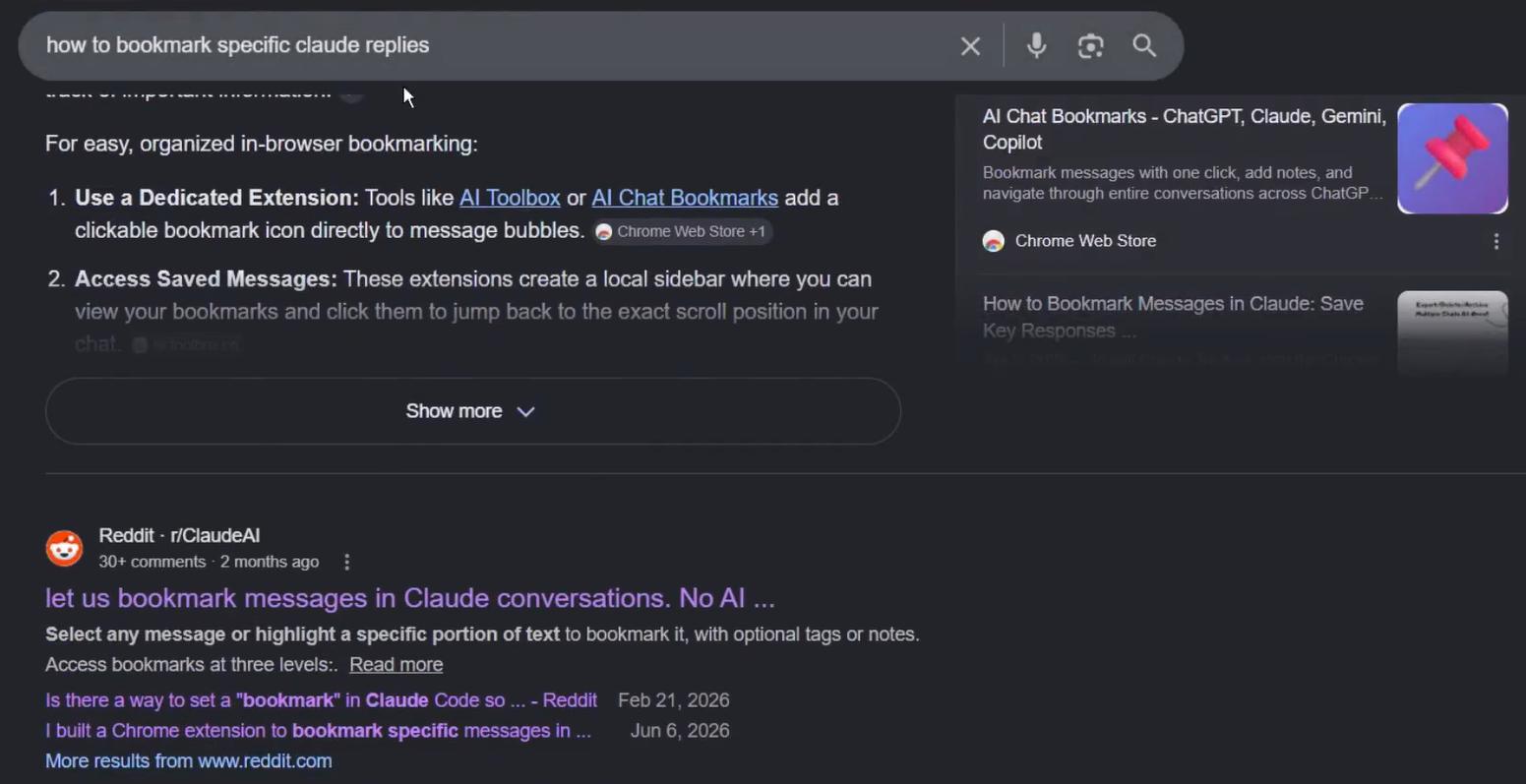
I came across something called "AI Toolbox for Claude" - but it had quite a few negative reviews, mostly because it was a paid service. That got me thinking: how complex would it actually be to build something like this myself?
That thought turned into AI Bookmark - a Chrome extension that lets you star and save specific replies from Claude, ChatGPT and Grok, with cloud sync via Supabase. This is the full story of how it was built, including every bug, every dead end and every moment where the AI surprised me.
Ideating the Concept
Before writing a single line of code, I had to think through the architecture.
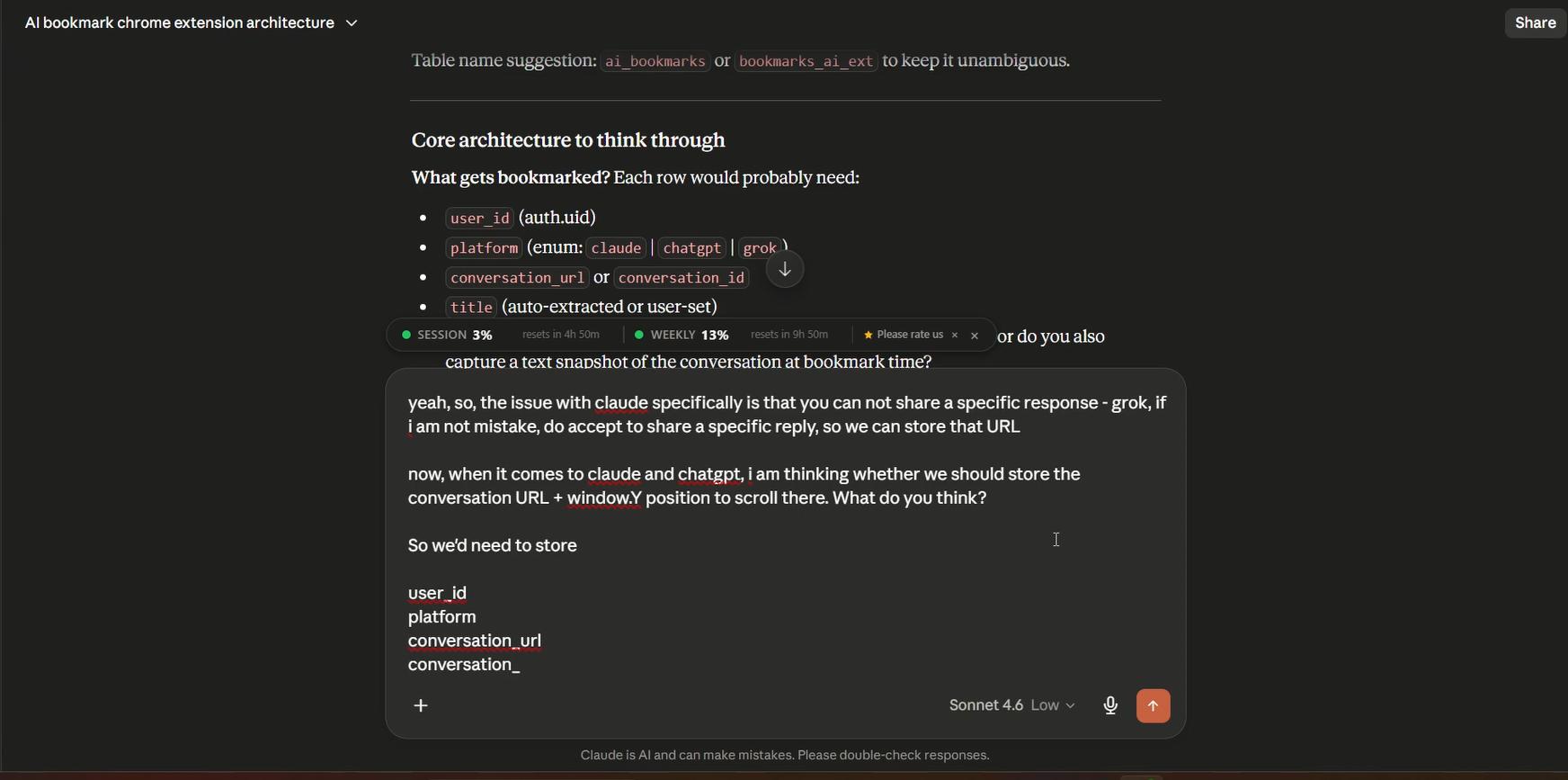
My first instinct was local storage - it is simple, it requires no backend, and for a validation project it is more than enough. But there is a real problem with local storage in Chrome extensions: if a user uninstalls the extension, the data is gone. That is a terrible experience for something that is supposed to help people save things. So I knew I would need to offer an import/export function at minimum - and depending on how the project grew, a proper cloud option would become necessary.
In terms of what data to actually store, the requirements were fairly clear. We would need: the URL of the conversation, the chat title, the content of the reply itself, and some way to scroll back to that specific message when the user wants to revisit it. That last part - the scroll-to mechanism - would turn out to be the most interesting engineering problem of the whole project.
One more thing I wanted from the start: seamless visual integration. I did not want the extension to feel bolted on. I wanted the bookmark button to look like it belonged on Claude and ChatGPT natively. To do that, I planned to inspect their CSS and build the UI to match.
Brainstorming the Technical Approach
Once the concept was clear, I sat down with Claude to work through the technical details.
One of the first things I needed to figure out was whether sharing a single Supabase account across multiple projects was viable. I only have one Supabase account, and several of my extensions already use it - each one gets its own table. That setup works fine, and this project would follow the same pattern.
The more interesting question was: how do you link back to a specific reply inside a conversation?
Grok actually makes this easy - it has a native "share reply" feature that generates a URL directly to that message. For Grok, storing that URL would be sufficient.
Claude and ChatGPT, however, do not have this. So I had to think of an alternative.
My initial idea was to store the window.scrollY position - essentially recording how far down the page the user was when they bookmarked the reply.
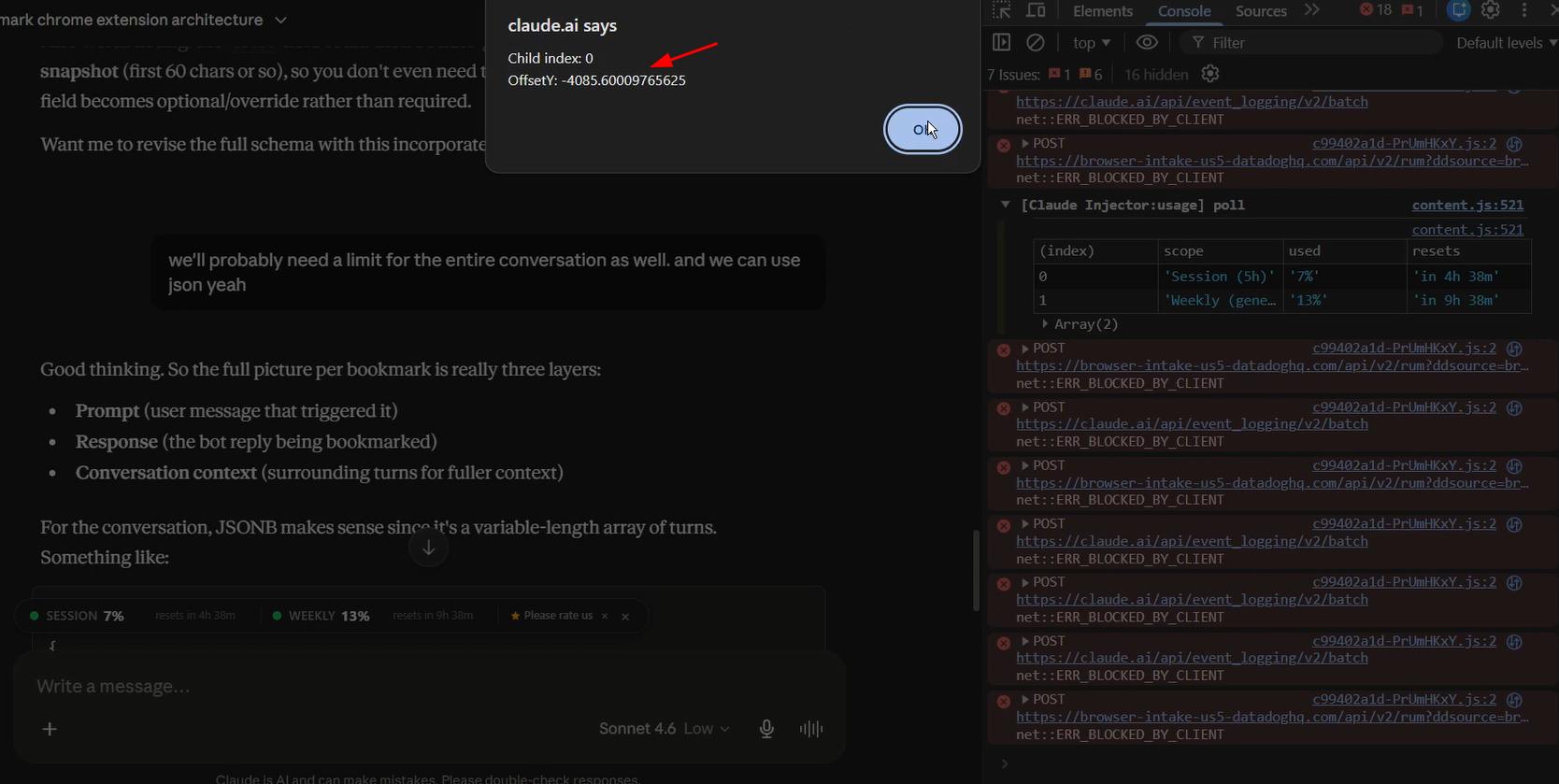
It is a blunt instrument, but it works as a fallback. Claude suggested something more elegant: look for a DOM element that identifies the specific reply by index. Something like data-index="7", where 7 indicates which reply in the conversation that is.
I thought that was smart. So I grabbed the HTML of Claude's interface and asked whether anything like that existed.
It did not. Unfortunately.
That meant I would need to use a combination of approaches - DOM selectors where possible, scroll position as a fallback. More on that in a moment.
One more decision at this stage: I would store not just the AI reply, but also the prompt the user sent before it. Context matters. A reply without the question that generated it is much less useful.
The First "Hello World" - Finding Replies in Claude's DOM
The first real coding step was figuring out how to identify individual replies in Claude's interface and inject a bookmark button next to each one.
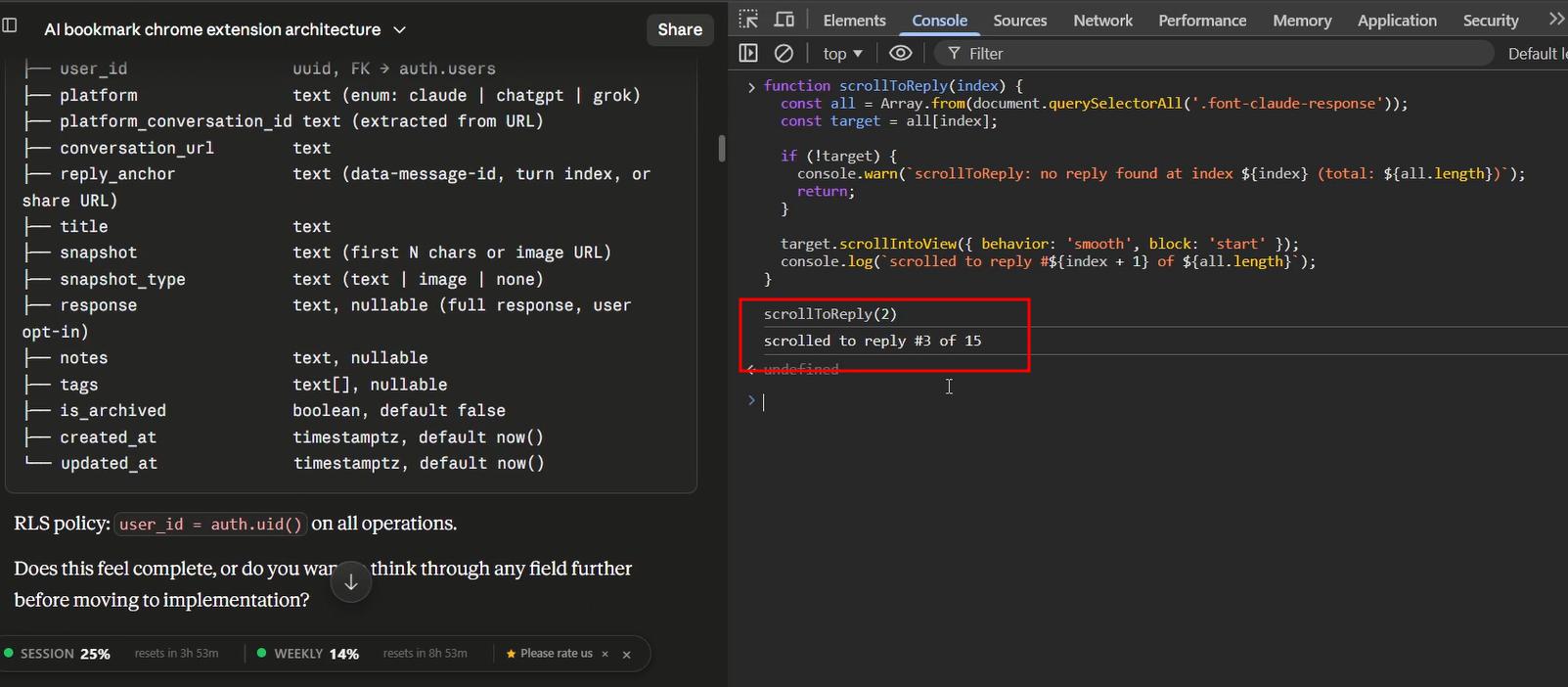
After some exploration, I found a useful CSS class: font-claude-response. This let me count how many responses were visible on screen. The full selector that worked was:
.group > .contents + [role='group'] > * > *
Here is the first working script - it injects a bookmark button into each reply and logs which response number was clicked:
document.querySelectorAll(".group > .contents + [role='group'] > * > *").forEach((el) => {
  el.insertAdjacentHTML('beforeend', `<button class="ai-bookmark__bookmark">🔖</button>`);
});

document.querySelectorAll('.ai-bookmark__bookmark').forEach((btn) => {
  btn.addEventListener('click', function(e) {
    e.stopPropagation();
    const parent = btn.closest('[data-test-render-count]');
    const response = parent.querySelector('.font-claude-response');
    const all = Array.from(document.querySelectorAll('.font-claude-response'));
    const index = all.indexOf(response);
    console.log(`This is font-claude-response #${index + 1} of ${all.length}`);
  });
});
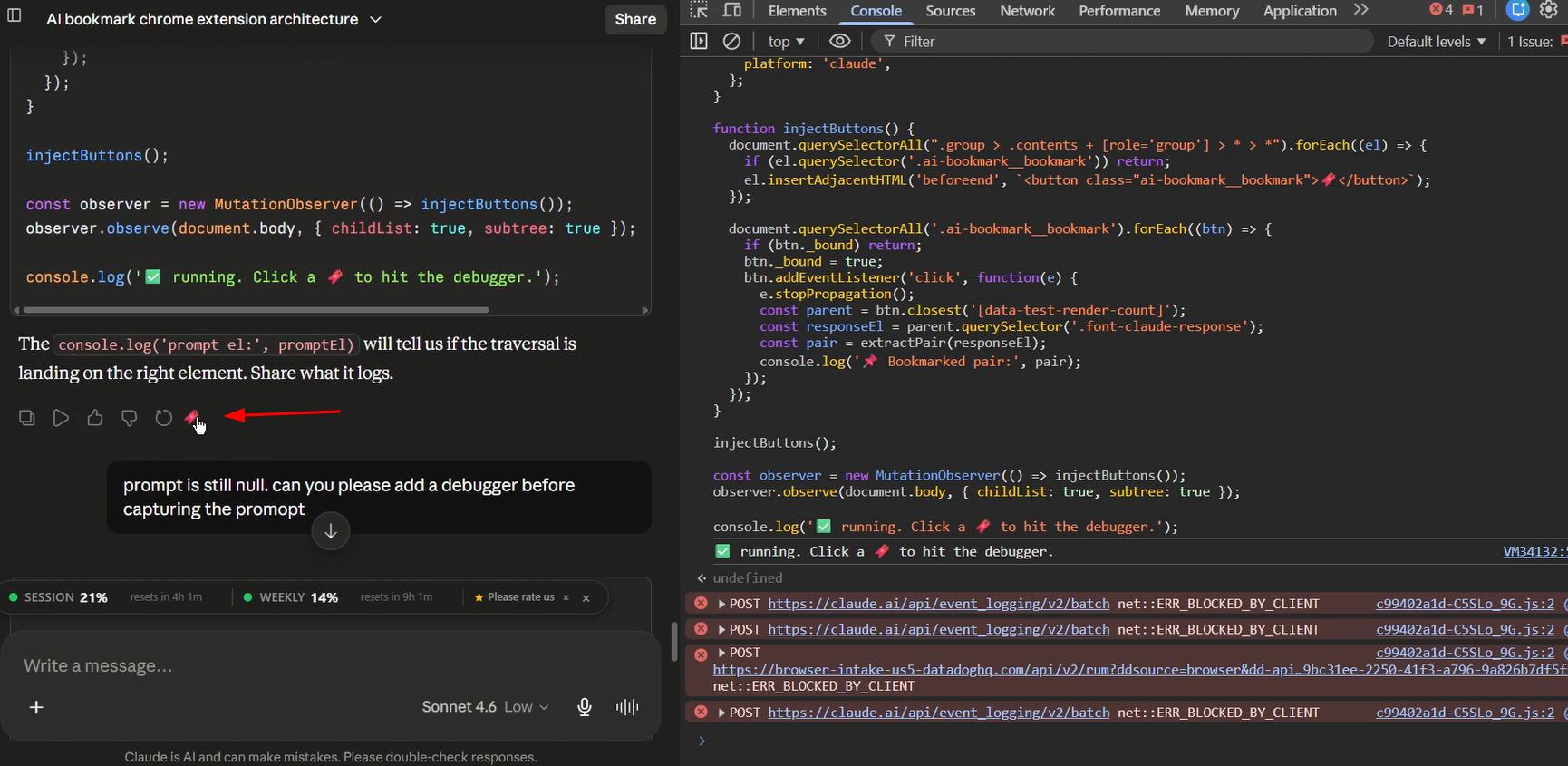
Not production-ready, but it confirmed the concept worked. I could identify which reply number had been bookmarked. The next challenge was scrolling back to it.
Debugging Claude and the Scroll Mechanism
The scroll-to feature took longer than expected.
My first thought was to track window.scrollY - but Claude's interface does not have overflow-y: scroll on the body or html elements. It uses a specific inner div that handles the scroll. I had to figure out which div that was, attach the scroll tracker to it, and read from there instead.
To test this, I wrote a quick script: click anywhere on the screen, log the scroll position, then scroll back to that exact position. It worked. The position was trackable and scrollable.
The remaining problem was accuracy. Scroll position alone is not reliable - it changes depending on window size, screen resolution, and whether the conversation has fully loaded. So the final approach combined both methods: scroll to the approximate position first, then scan the DOM for the specific reply element that should now be visible, and highlight it so the user knows they are in the right place.
After a long debugging session, I finally had a function that could both bookmark a reply (capturing the content and the prompt before it) and scroll back to it reliably. Claude was working. Time to look at ChatGPT.
Working on ChatGPT
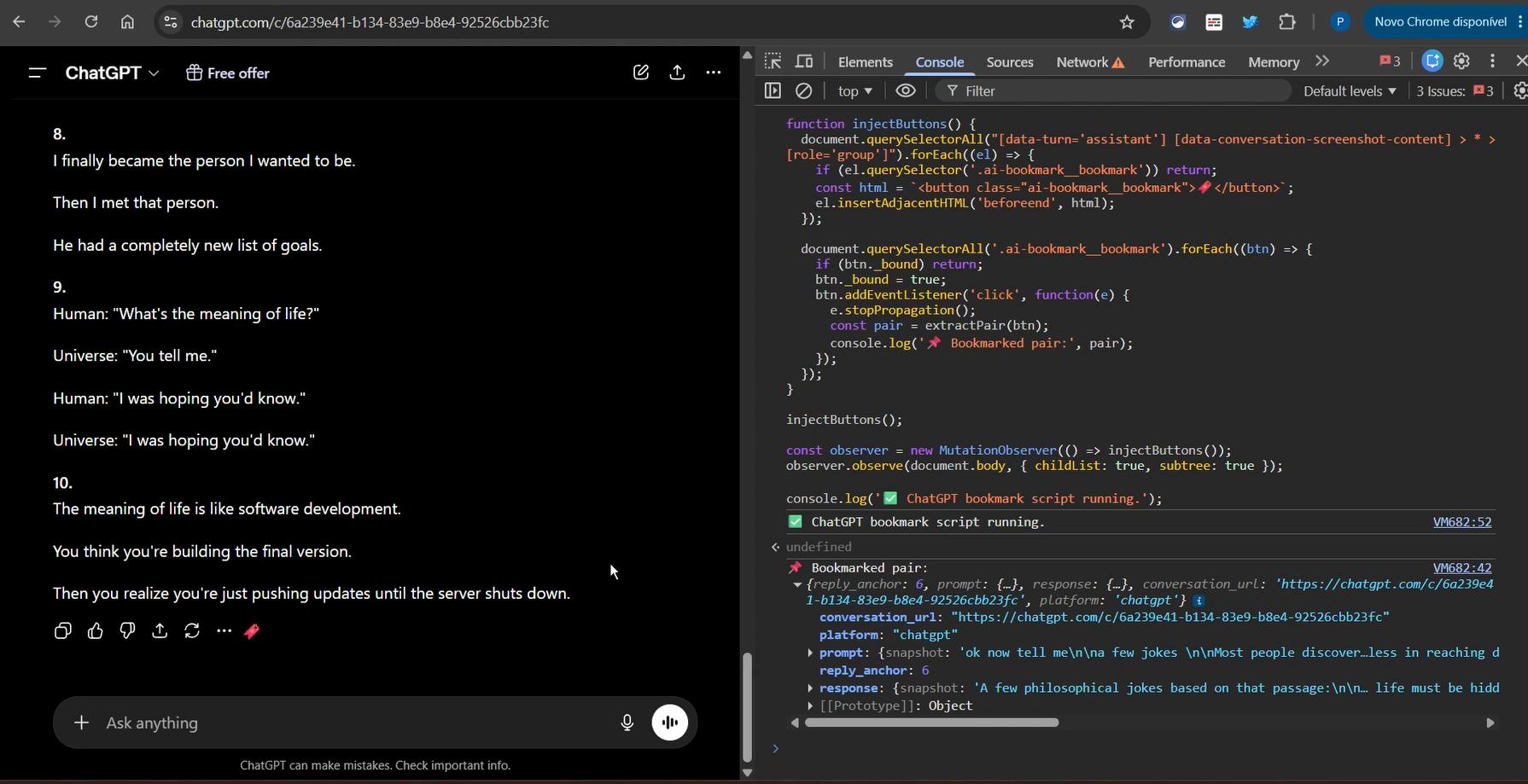
The first thing I noticed when opening ChatGPT's DevTools is how heavy it is. Just opening the console was enough to make it sluggish - though that might also be my laptop.
The good news though: ChatGPT makes the DOM work considerably easier than Claude. They have a specific attribute called data-testid="conversation-turn-{n}" on each message. This meant I could identify any reply with a single selector, and get the prompt before it just by fetching conversation-turn-{n-1}.
The implementation worked almost immediately - with one small bug. The stored prompt was including the text "You said:" at the beginning, which is a label ChatGPT injects into the DOM. A more specific CSS selector fixed it.
One architectural decision I made at this stage: I would keep separate content scripts for each platform (claude.js, chatgpt.js, grok.js) rather than one unified script with conditionals. It adds some redundancy, but each platform is different enough that a single script would become difficult to maintain. If ChatGPT or Claude overhauls their DOM structure - which they will - I want to be able to update one file without risking the others.
Working on Grok
Grok seemed like it would be the simplest, given the native share URL feature. It turned out to be more complicated in practice.
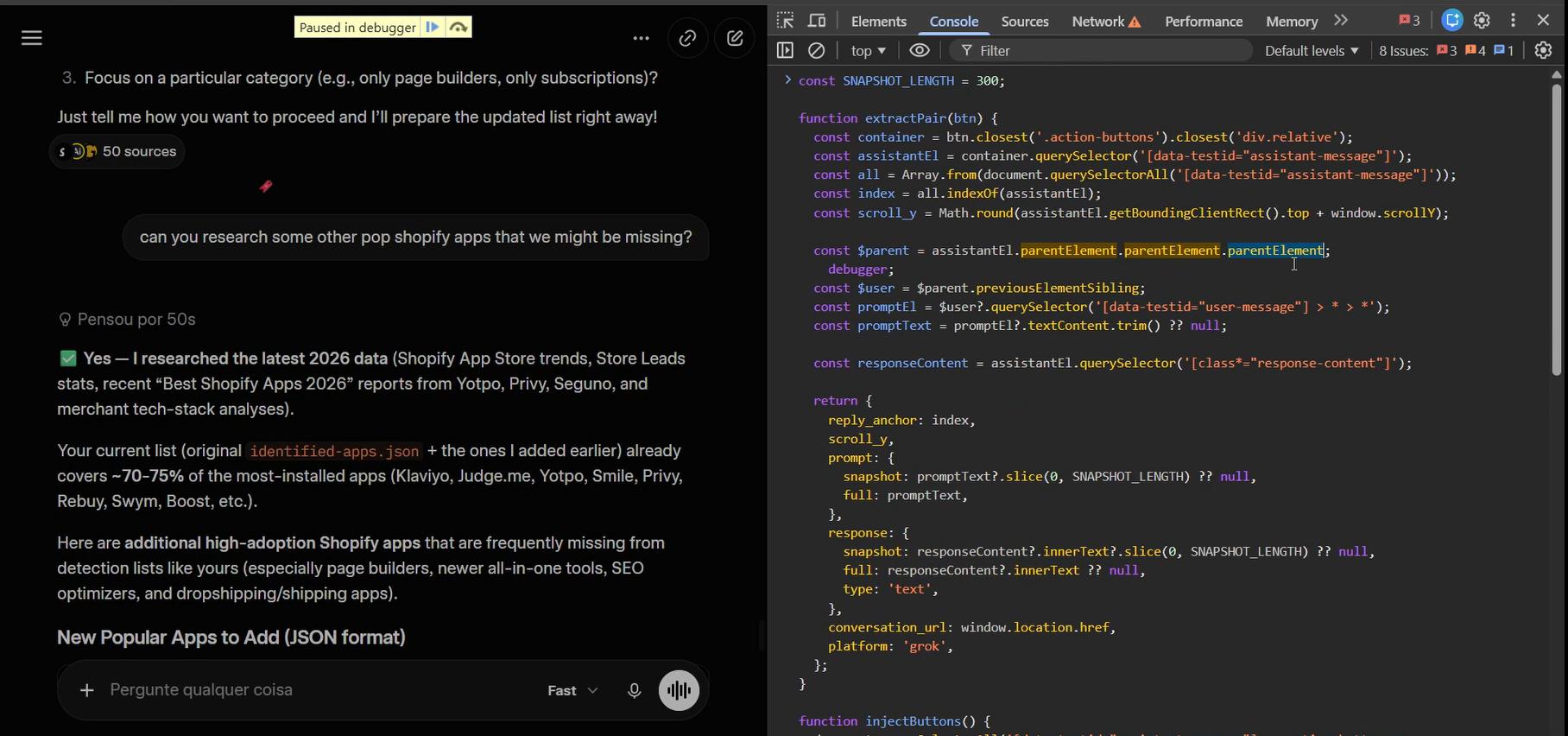
My initial plan was to programmatically trigger the share button and read the URL from the clipboard. That did not work - the button was not being focused correctly for $0.click(), and even with a timeout to wait for focus, reading clipboard content from a content script is not straightforward.
So I fell back to the same approach as Claude and ChatGPT - DOM selectors and scroll position. I also ran into a manifest.json issue that cost me some time: the permissions were pointing to x.com instead of grok.com, so the content script was never being injected at all. Once that was fixed, the script worked correctly.
There was one CSS quirk worth noting: the ~ symbol in CSS selectors was useful for finding distant siblings in Grok's DOM structure - something I had not needed for the other platforms.
One remaining UX issue: Grok's bookmark icon was not hiding alongside Grok's native action buttons on hover the way it should. I logged it to fix later and moved on.
Figuring Out the UI
With the core functionality working across all three platforms, it was time to think about how the user would actually view and manage their bookmarks.
My first instinct was to use the extension popup - the small window that appears when you click the extension icon. But the UX felt clunky. The popup closes the moment you click anywhere outside it, which means you would lose your position every time you tried to navigate to a bookmark. The state management overhead was not worth it.
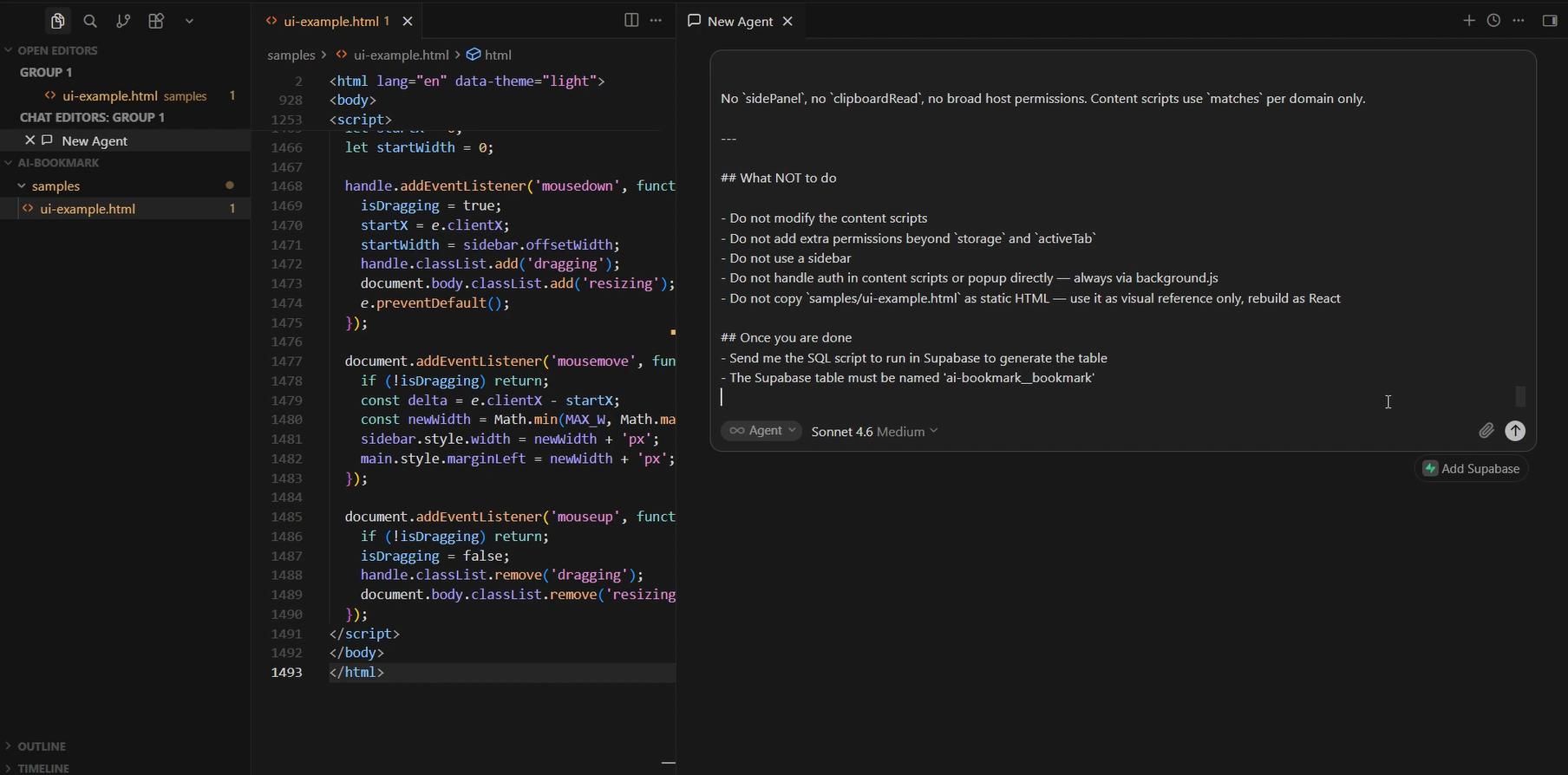
A sidebar was the next option. But sidebars require an additional browser permission, and I try to keep the permissions list as minimal as possible. Users are rightfully suspicious of extensions that ask for too much access.
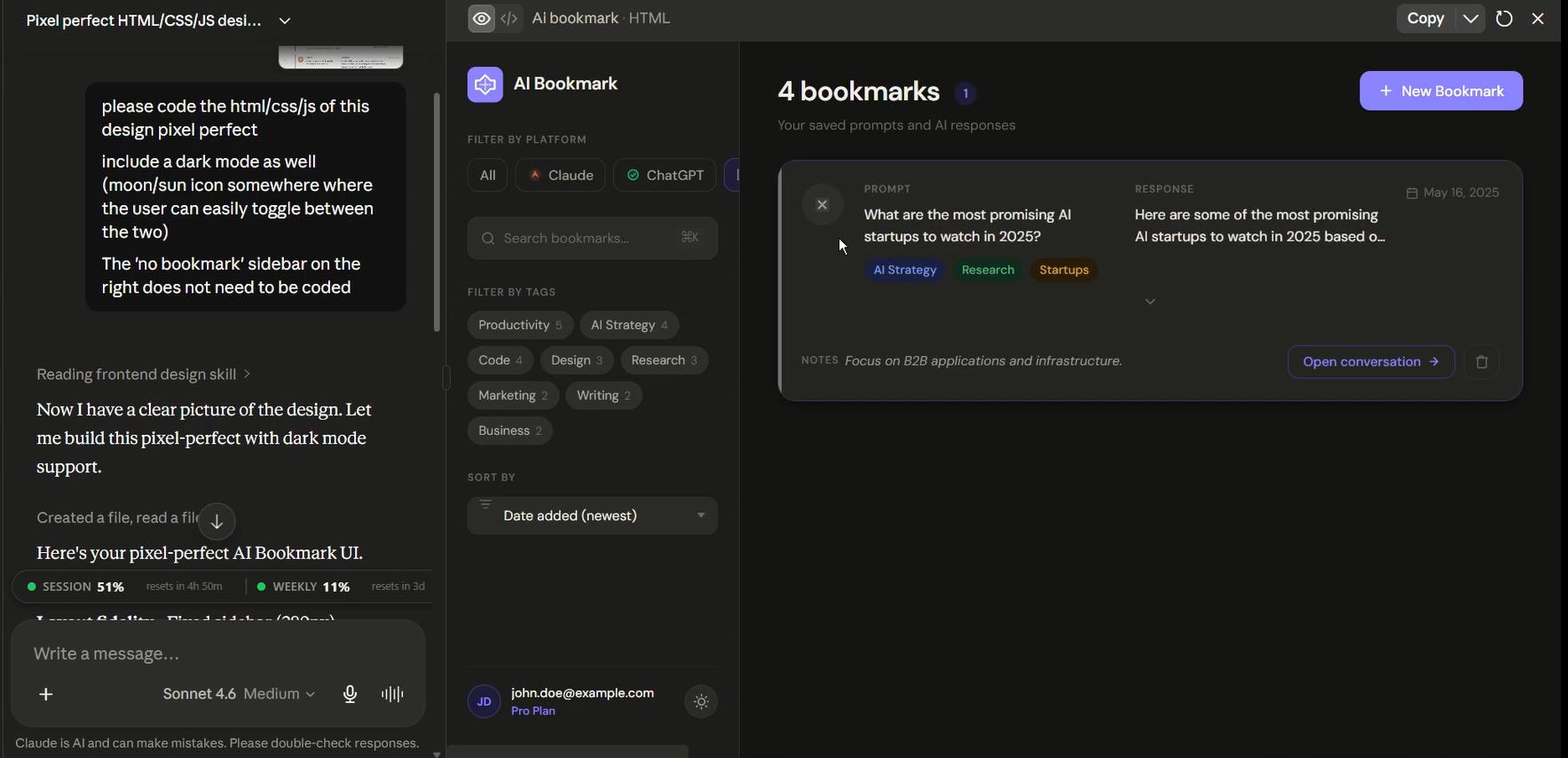
The most sensible solution was a dedicated HTML page - essentially a local web app that opens in a new tab. The user gets a full-page view of all their bookmarks, can filter by platform, open conversations, and manage tags and notes without any of the state-management headaches of the popup.
Now, I will admit something: I usually code functionality first and worry about design later. For this project, I broke that rule. I wanted to see how the thing would look before committing to the layout. So I asked Claude to describe the UI and took that description to ChatGPT to generate some design concepts.
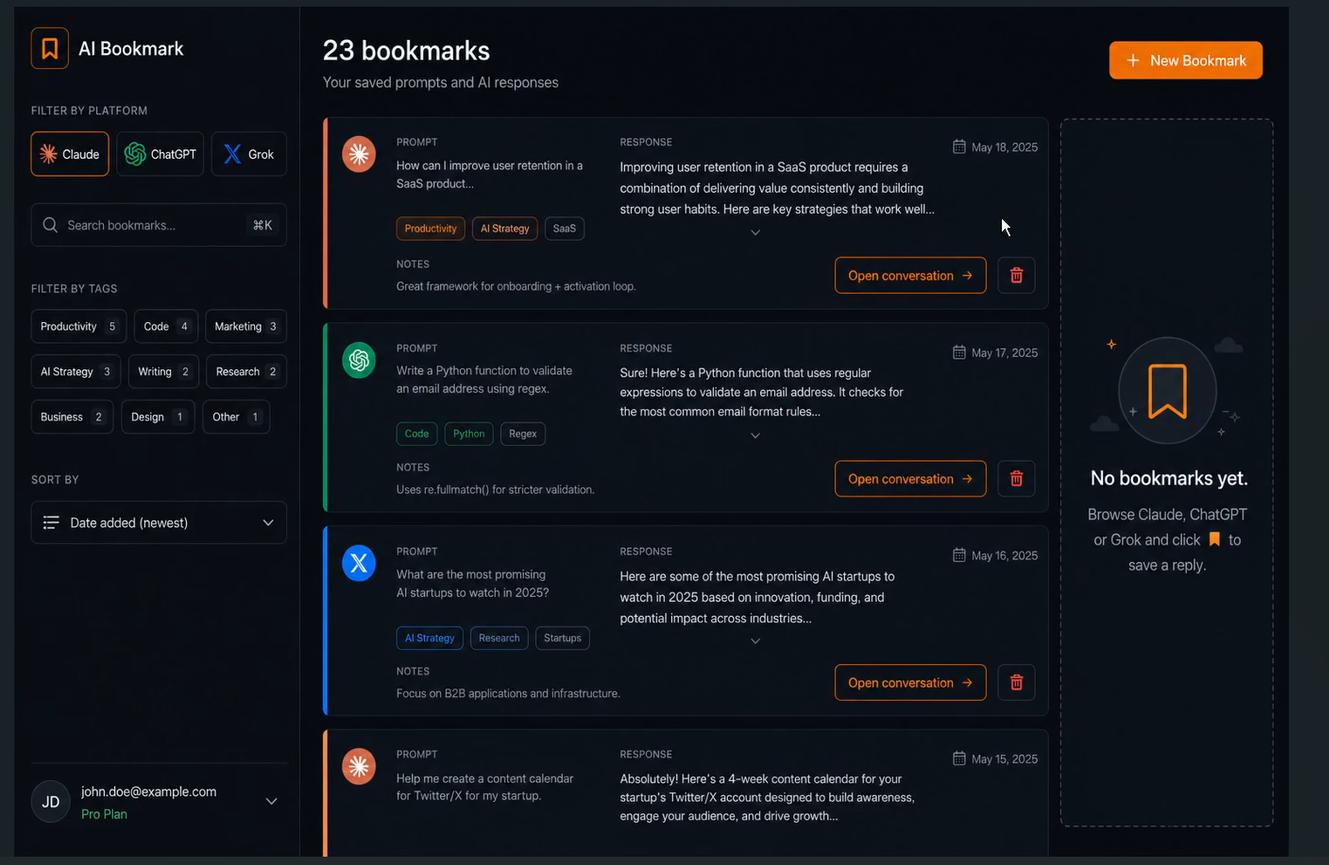
The first concept was decent but not quite right. I sent another reference. Still not satisfied. Then another one.
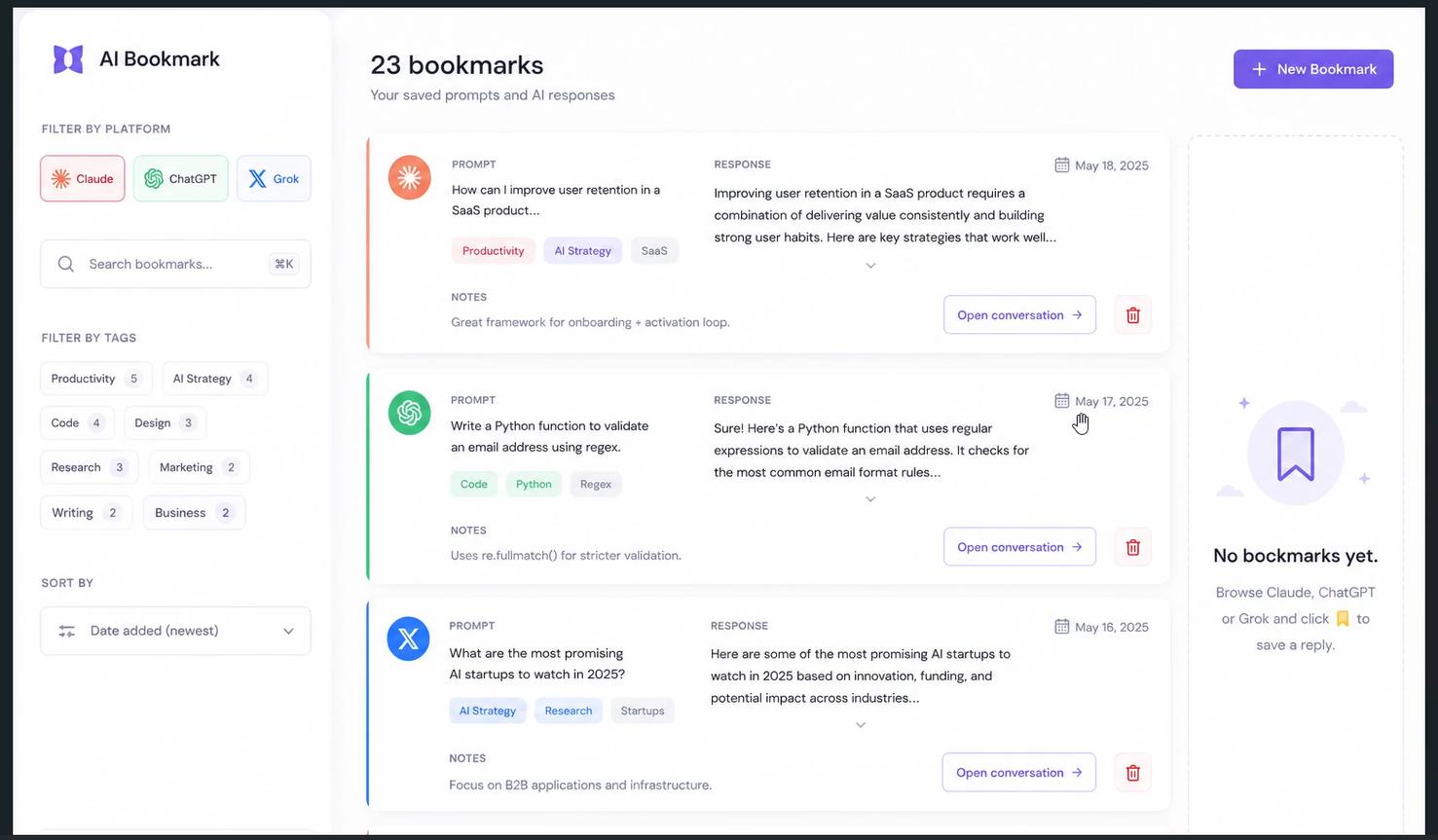
I eventually caught myself spending more time on design than on the features that actually needed to be shipped - which is a rookie mistake I am apparently still capable of making. I settled on the second design concept, which was cleaner, and moved on.
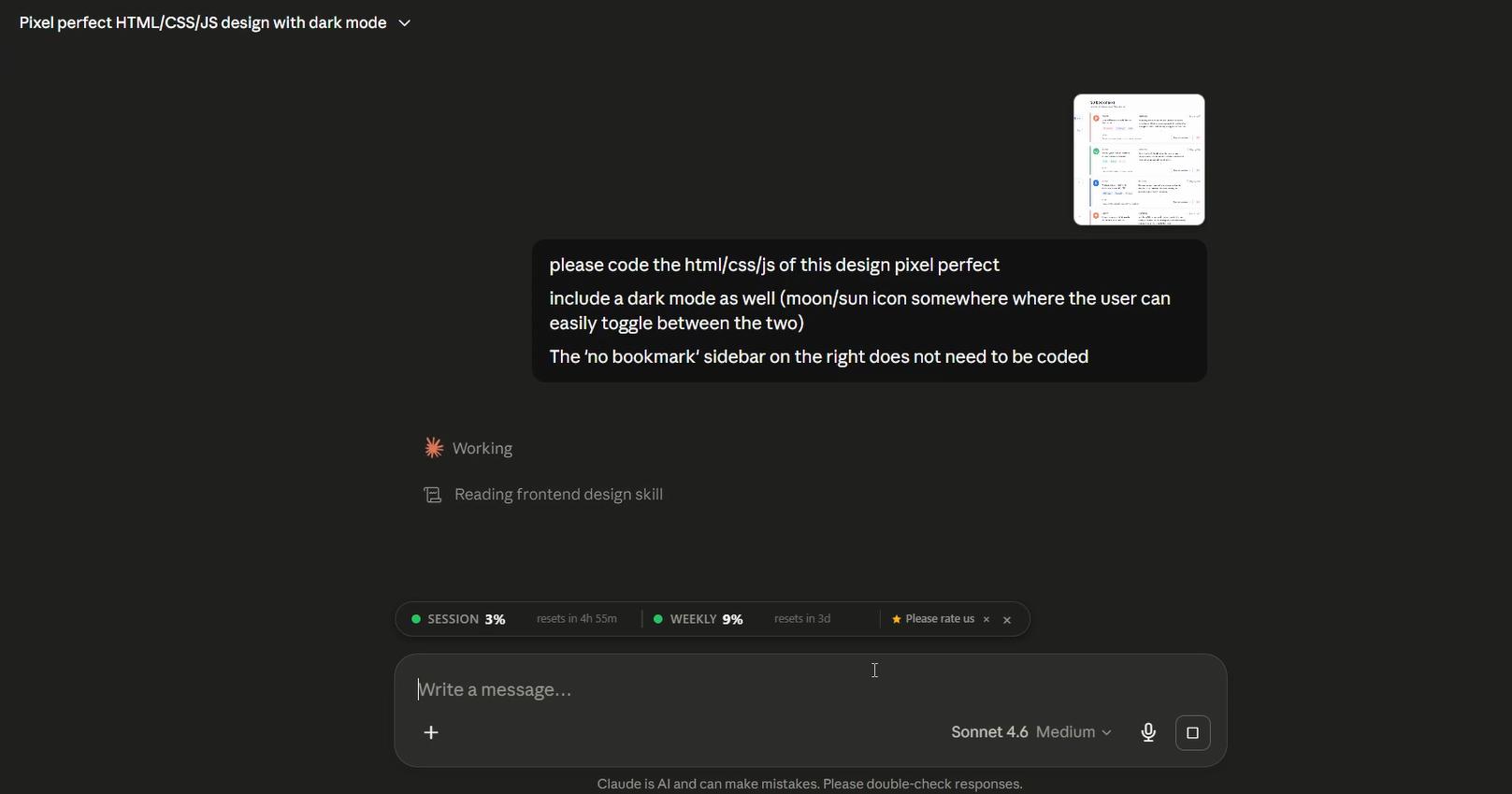
I sent the designs to Claude and asked it to code th HTML, CSS and JS so we could use it for our Chrome extension.
Building the Chrome Extension - First Build
With a design reference and a detailed prompt, I sent everything to Cursor and let it build version 0.0.1 of AI Bookmark.
The first bug appeared immediately: HTML was being injected into the Claude interface even when no reply elements were found on the page. The fix was straightforward - only inject anything if the target elements actually exist in the DOM.
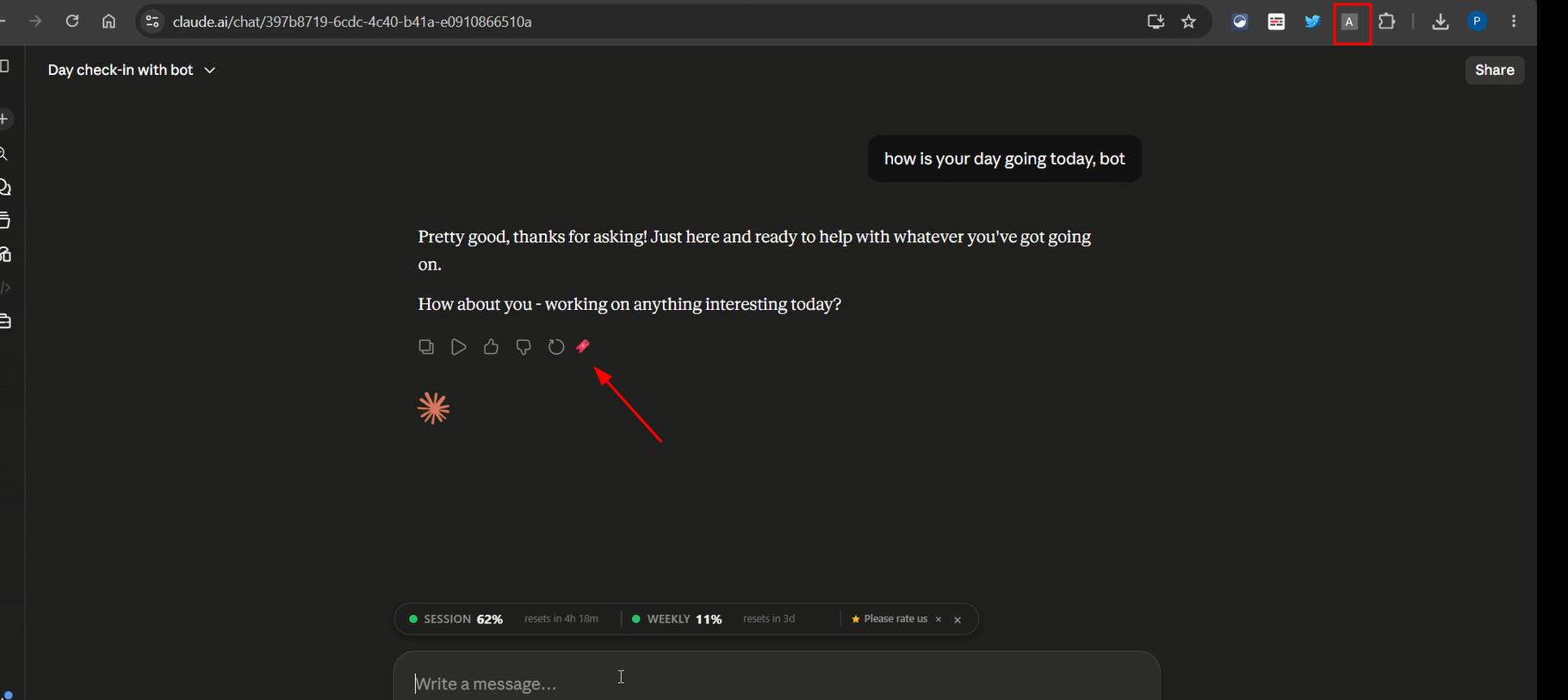
The second bug was more interesting. As new replies were generated during a conversation, the bookmark button was not being injected into them. The extension only ran once on page load and did not account for dynamic content. I considered monitoring API calls, but a MutationObserver was simpler and more reliable for this use case.
Then came the Supabase issue. When testing, the bookmarks were being saved to Chrome's local storage instead of Supabase. Cursor had quietly added a fallback that stored locally in development mode. Understandable logic, but not what I wanted - the whole point was cloud sync. I fixed the logic, created a dummy user in Supabase for development testing, and confirmed that saves were going through correctly.
Stars, Icons and Syncing State
With the save mechanism working, I focused on the UI of the bookmark button itself.
I replaced the temporary 🔖 emoji with a proper star SVG icon - one that fills in when a reply is already bookmarked and returns to outline when it is removed. (The irony of using Claude to code its own code). I also needed to fetch the conversation title for each bookmark, which turned out to be straightforward: Claude's interface has a unique aria-label on the conversation element that could be read directly.
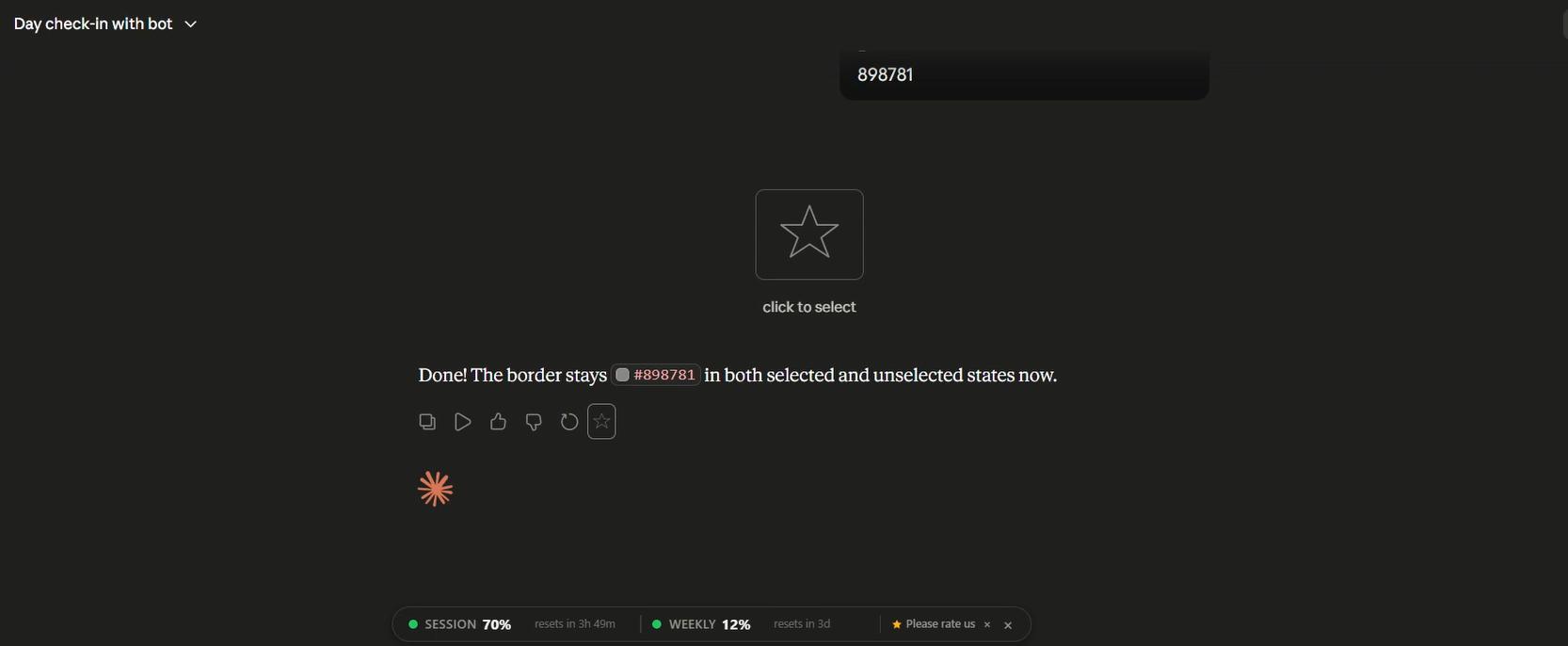
The sync logic worked as follows: clicking the star saves to Supabase and marks it as active. Clicking it again deletes the record. On page reload, the extension checks Supabase and restores the star state for any previously bookmarked replies. This meant the UI stayed consistent even across sessions and devices.
The Scroll-to Feature in ChatGPT - A Longer Battle
Getting scroll-to working on Claude was relatively smooth. ChatGPT was a different story.
The core issue was timing. ChatGPT's page is heavy - it loads asynchronously, and content continues rendering well after the initial page load. The extension was executing the scroll function before the target element even existed in the DOM.
The fix involved two layers: first, wait for the page to fully load before attempting to scroll. Second, once scrolling begins, check whether the target element is actually visible in the viewport. If it is not, adjust and try again until it lands on screen.
There was also a sign bug - in some cases scrollY was returning a negative value, requiring a multiplication by -1 to get the correct position.
Debugging all of this was slowed significantly by ChatGPT's performance with DevTools open. The page became noticeably laggy, which made it hard to distinguish between actual bugs and DevTools overhead. Once I accepted that and added appropriate timeouts and load-wait logic, things stabilized.
One additional complication: ChatGPT conversations with lots of images required waiting for all images to load before scrolling, since image loading affects the scroll position of everything below.
After all of that - it worked.
Toast Notifications
With the core functionality solid, I added a small UX improvement: toast notifications.
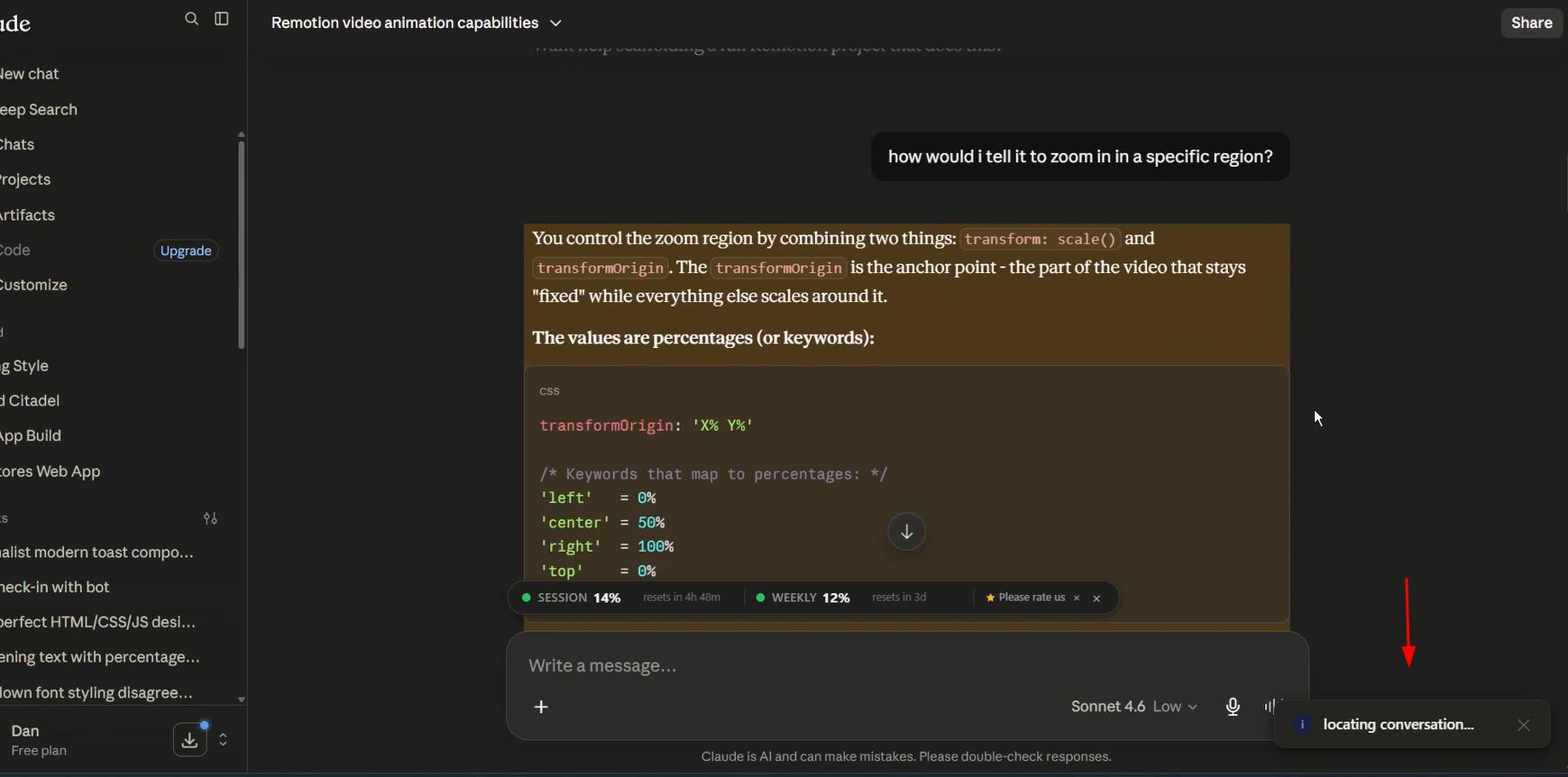
When a user opens a bookmarked conversation and the extension starts scrolling to the target reply, a toast appears explaining that the starred message is being located. This prevents the moment of confusion where the page scrolls on its own and the user does not know why.
I also added toasts for the bookmark add/remove action, with a note that it may take a moment for the message to sync. I asked ChatGPT to write the toast HTML and CSS, then forwarded it to Claude to integrate into the project.
Login with Google + Supabase Auth
I will be honest: authentication in Chrome extensions is the dark souls of extension development. Every time I do it, it takes at least 2-3 hours and involves bugs I have hit before and somehow forgotten about.
The login flow uses Google OAuth wired through Supabase Auth. One thing I have learned through repeated pain: always choose "web application" as the OAuth type in Google Cloud Console, not "Chrome extension." The former works. The latter causes subtle issues that are difficult to diagnose.
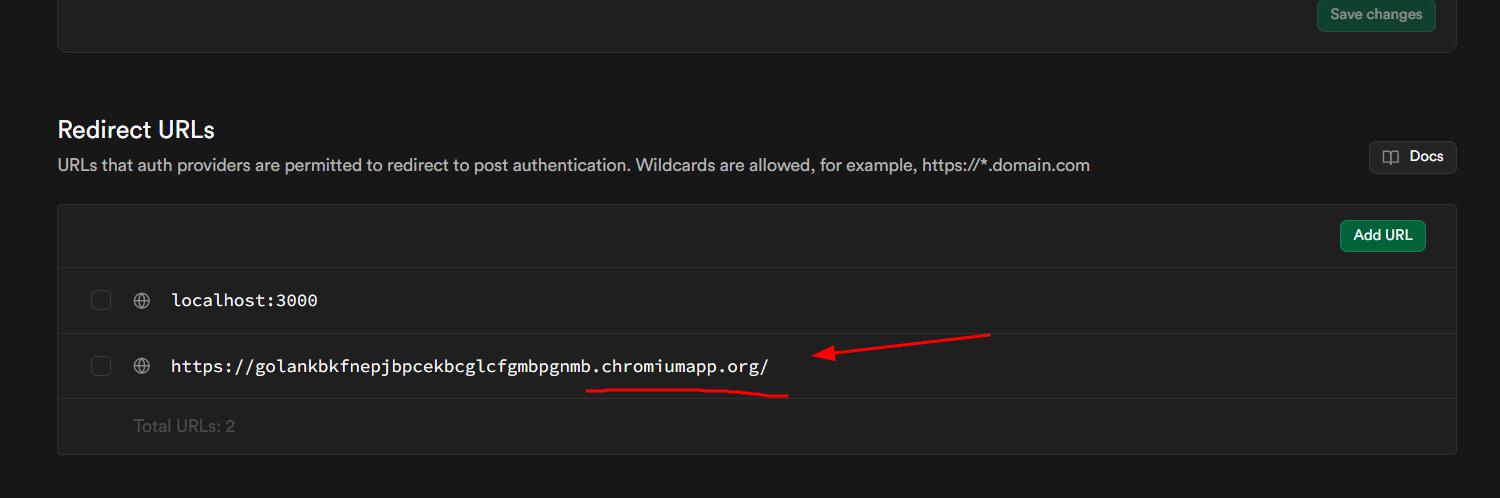
The other thing I always forget: adding chromiumapp to the redirect URLs in Supabase. Without it, the auth callback never completes. I have a boilerplate Chrome extension project that documents all of this, and I fed it to the AI to remind myself of the steps. That saved significant time.
Once login was working, I added a dev environment variable that bypasses Supabase auth entirely during development, and made sure the zip-and-build.bat script automatically disables it before packaging. This way I never accidentally ship a version with the dev backdoor enabled.
The Bookmark Manager - UX Improvements
The bookmark manager HTML page went through a few rounds of iteration.
The initial version showed bookmarks as a flat list. It worked, but the UX felt messy - there was no clear way to preview a reply without navigating away from the page. I added a modal that shows the full conversation turn (prompt + reply) when a bookmark is clicked, along with a quick-preview mode for scanning bookmarks without opening them fully.
I also added tags and notes to each bookmark - small fields inside the modal where users can annotate their saved replies. These sync to Supabase in real time. I initially had them auto-saving on every keystroke, which would burn through unnecessary database writes. I switched to a save button with a checkmark animation on confirmation instead.
One last UX fix in the popup: it was taking too long to show content on open, displaying a loading screen that felt jarring. I replaced it with loading skeletons - placeholder shapes that match the layout of the actual content while it loads. Much cleaner.

Logo and Final Touches
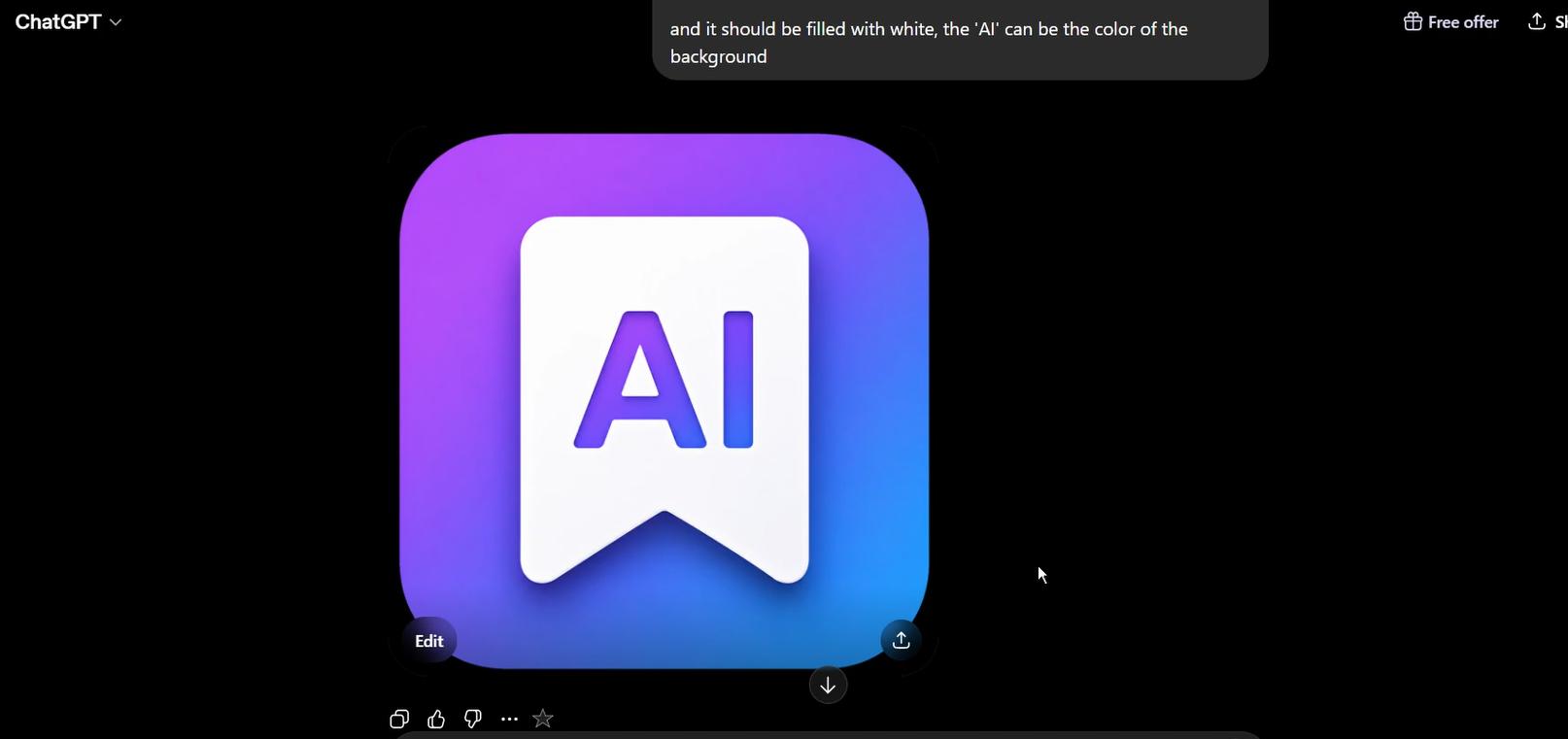
The last step before publishing was the logo.
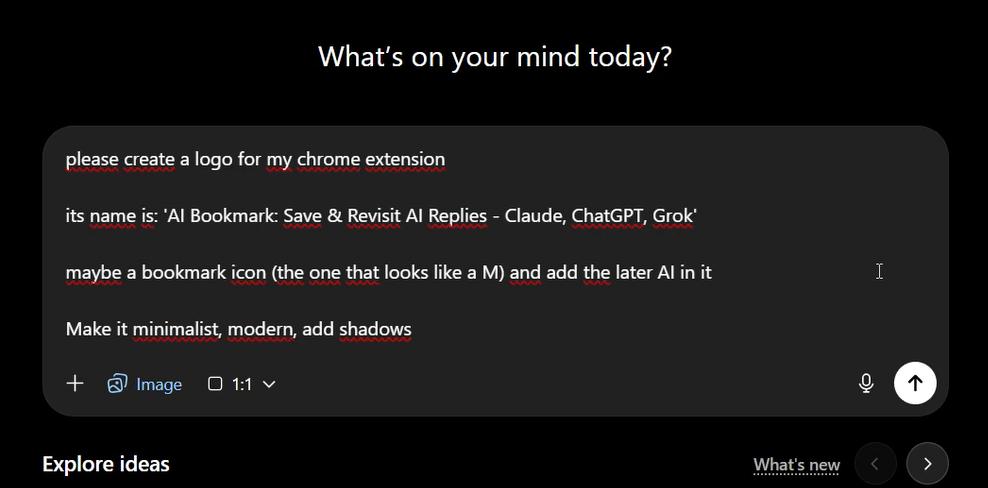
I am fond of shadows and gradients in logos - I think they give things a sense of depth that flat designs sometimes lack. After a few iterations, I landed on something I was genuinely happy with. I asked Cursor to resize and apply it consistently across all the assets.
For the Chrome Web Store listing, I asked Cursor to write the description in the specific format I use for all my extensions. Then ChatGPT generated the screenshots. One trick I have learned with AI-generated text in store listings: give it explicit rules about what not to do (never use em dashes, avoid marketing buzzwords, keep sentences short) and the result looks significantly less AI-generated. I also created the small promotional banner - in my experience, having one helps considerably with discoverability in the store.
What I Would Do Differently
The main thing is the architecture of the content scripts. Keeping three separate files (claude.js, chatgpt.js, grok.js) made sense for isolation, but there is a lot of shared logic between them - the Supabase write functions, the toast system, the scroll mechanism. At some point that redundancy will become a maintenance problem. A shared utilities module would be the cleaner approach.
The other thing: I spent too much time on design before the features were finished. It is a pattern I keep falling into and keep identifying after the fact. Functionality first, always. The design can be improved incrementally once the thing actually works.
What's Next
AI Bookmark is live on the Chrome Web Store now. The current version supports bookmarking specific replies on Claude, ChatGPT and Grok, with cloud sync, tags, notes, and scroll-to navigation.
There are features I deliberately left out of this version - expandable conversations in the manager, bulk export, sharing bookmarks between users - because I want real feedback before building things nobody asked for. Once there are users testing it, I will have a much clearer picture of what actually needs to be added.
If you try it, let me know what you think. The feedback form is built right into the extension.
Thanks for reading - and if you want to follow along as I build more of these, I document everything on the Coded Citadel YouTube channel.
More from the blog
Keep reading
12 Chrome Extensions Deployed Within 2 Months (Not AI Slop). All Data + My First Financially Successful Extension
I coded and published 12 extensions in 52 days and documented every single one - all my private data, the numbers, what I learned, and the story of my first financially successful Chrome extension.

I Made My First Sale in This Series! (Shopify Client Work, $1400)
How I landed a $1400 Shopify project, used AI to analyze competitors, built a custom product page with metafields, and shipped a full ecom store - all while using a Chrome extension I built myself to sync the theme in real time.
Twitter Blocked Me, I Moved to BlueSky, But It Had One Major Issue. So I Built a Chrome Extension to Fix It
How I got blocked by Twitter, ended up on Bluesky, scraped 13k Reddit comments to find a chrome extension idea, and shipped a free extension to hide reposts from specific accounts — all in one session.